
Preferences
The purpose of the Preferences page is to users or carers safely tailor how calls are placed and how the app behaves, without changing the core functionality. It is deliberately small, conservative, and defensive to ensure that the application predictability which matters more than high levels of flexibility. The following sections describe each of the options and how they are setup, it is expected that these options will be setup once.
The following functionality is available for all versions of the Elder Dialler application.
Show Dialpad
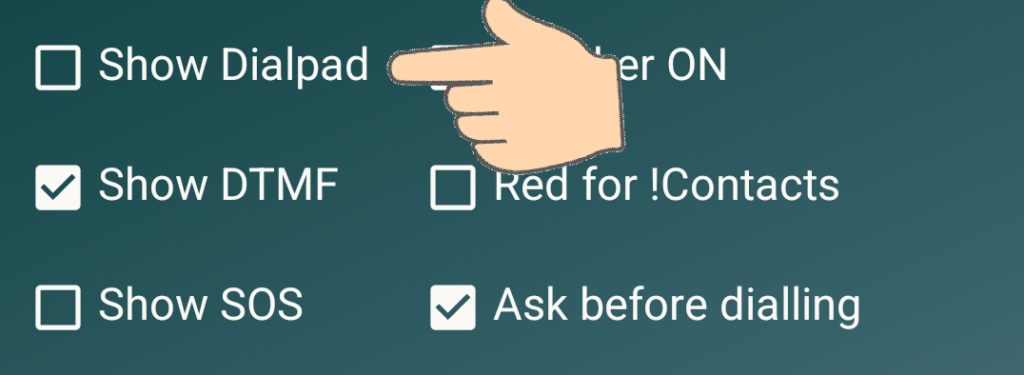
The ‘Show Dialpad‘ option turns on the ability for the user to call numbers that are not registered as contacts in the Contacts application.
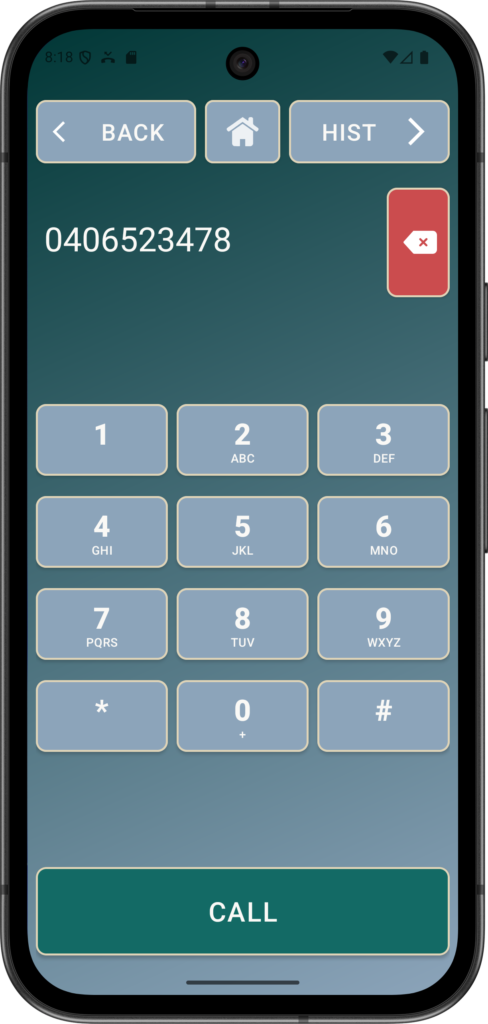
When activated, the Dialpad is appears between the Contacts and the Call History pages.
Unlike regular dialling applications, Elder Dialler does not enable the Dial pad by default because the app is designed around safety, simplicity, and recognition rather than number entry.
Many elderly users find typing numbers difficult or confusing, and accidental taps can lead to unwanted or even distressing calls.
By focusing on large, clearly presented contacts with names and photos, Elder Dialler reduces cognitive load and minimises mistakes, allowing users to place calls by recognising people rather than recalling numbers.
The Dial pad remains available as an optional feature for carers or advanced users, but keeping it disabled by default ensures a calm, predictable, and mistake-free calling experience.
Speaker ON
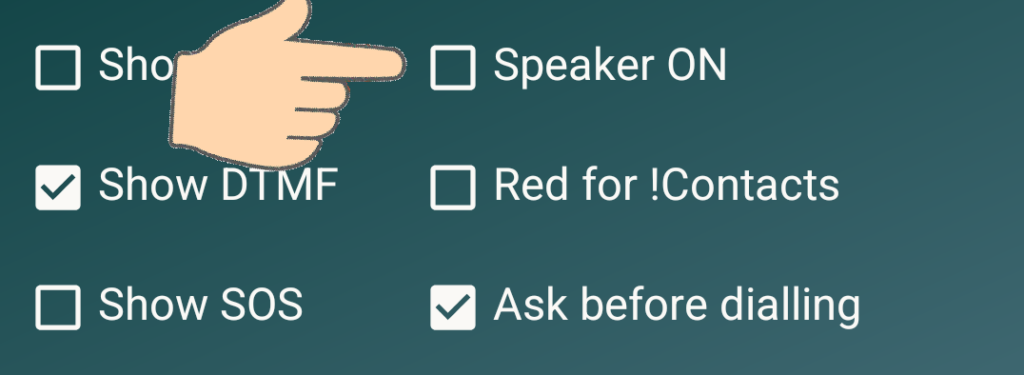
The ‘Speaker ON’ option enables the phone loudspeaker for all calls.
The Speaker ON option in Elder Dialler exists to make phone calls easier, safer, and more comfortable for elderly users who may struggle with holding a phone or hearing clearly through the earpiece.
Many older users have reduced hand strength, limited dexterity, or hearing loss, and using the loudspeaker allows them to place the phone on a table while still hearing and being heard clearly. This reduces physical strain, lowers the risk of dropping the device, and makes conversations less tiring.
Like other features in Elder Dialler, Speaker ON prioritises accessibility and comfort while remaining simple and predictable, supporting confident, hands-free communication without adding complexity to the calling process.
Show DTMF
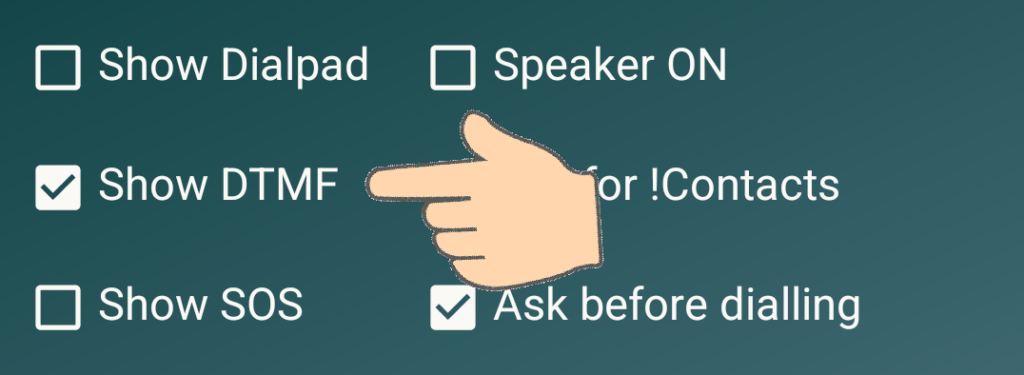
The Show DTMF option in Elder Dialler controls whether the on-screen keypad is available during an active call to send DTMF (Dual-Tone Multi-Frequency) tones.
These tones are used by many automated phone systems—such as medical services, banks, pharmacies, utilities, or voicemail—where the caller is asked to “press 1”, “press 2”, or enter a PIN or extension.
When Show DTMF is enabled, large, clearly labelled buttons appear during a call, allowing the user or a carer to interact with automated systems without ending the call or switching apps.
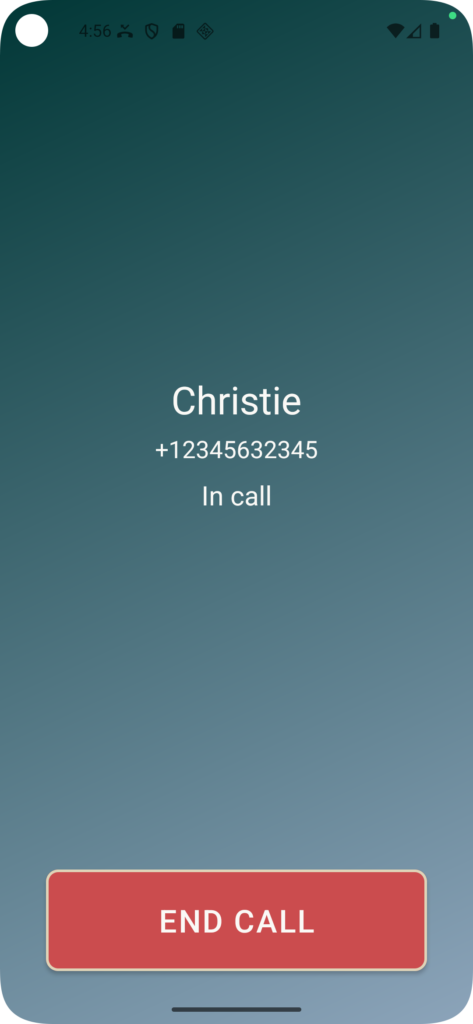
Call in progress with DTMF Checkbox OFF
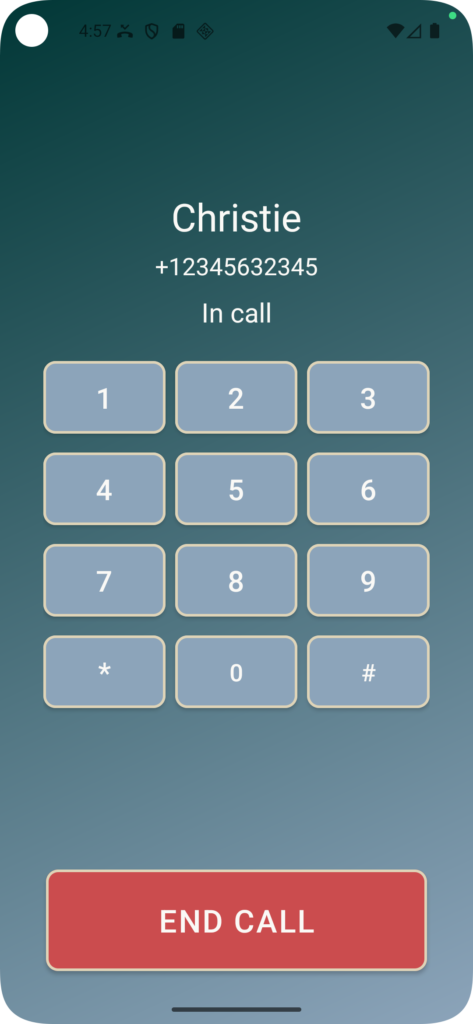
Call in progress with DTMF Checkbox OFF
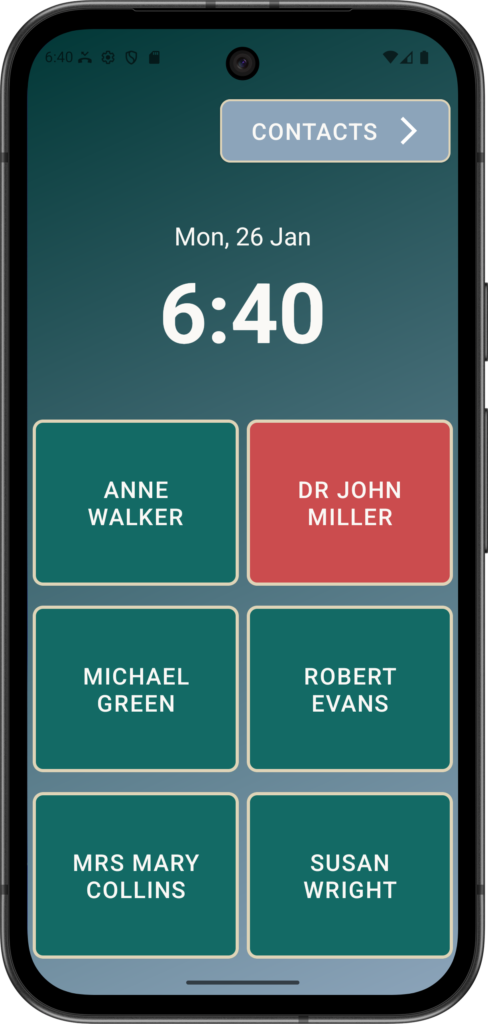
Red for Contacts
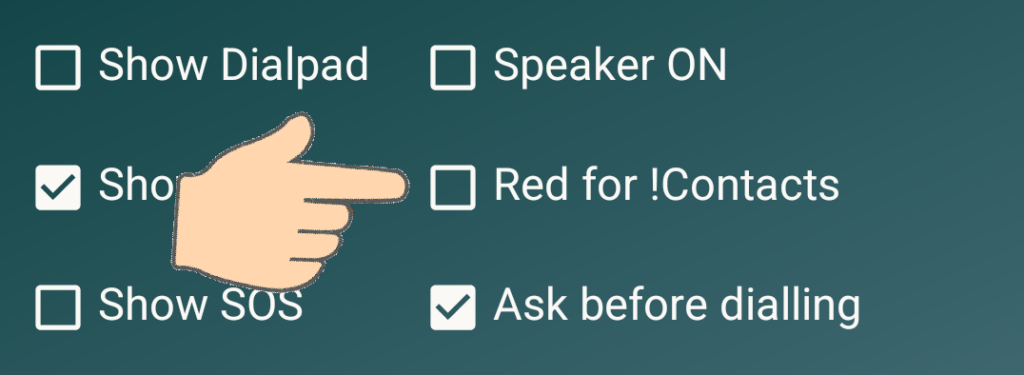
“Red for Contacts” preference is designed to help elderly users quickly and confidently identify who to call when assistance or emergency help is needed.
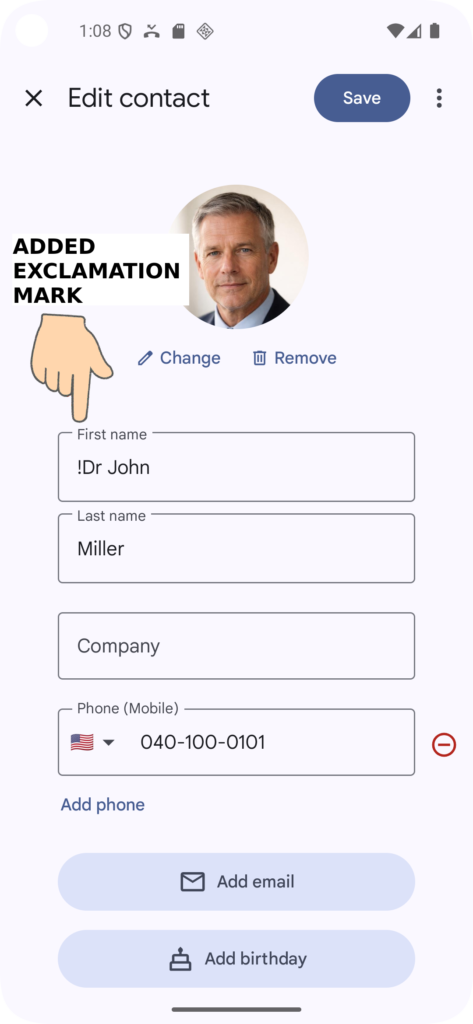
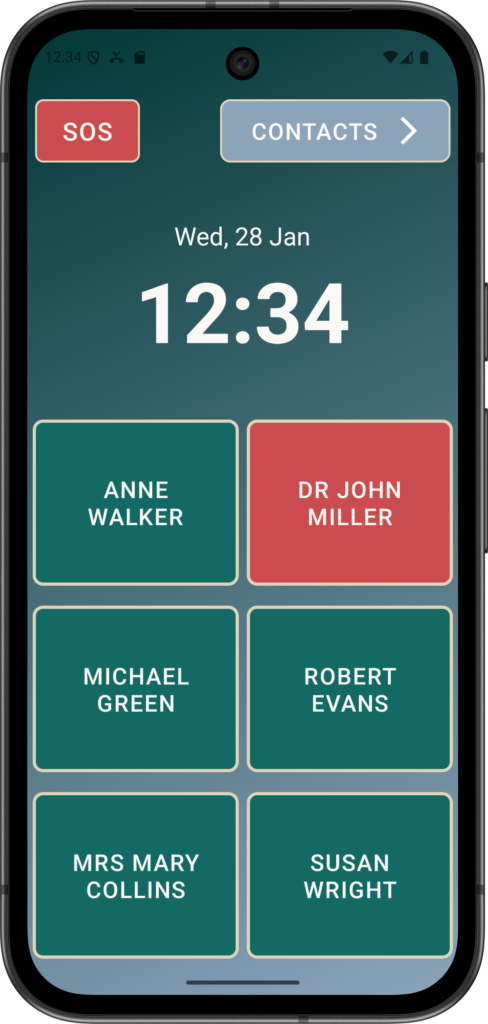
When contact names contain an exclamation mark (!) added anywhere in the name within the Contacts application, then their associated buttons are highlighted in red.
Multiple contacts can be RED – just add the exclamation mark to each.
Show SOS
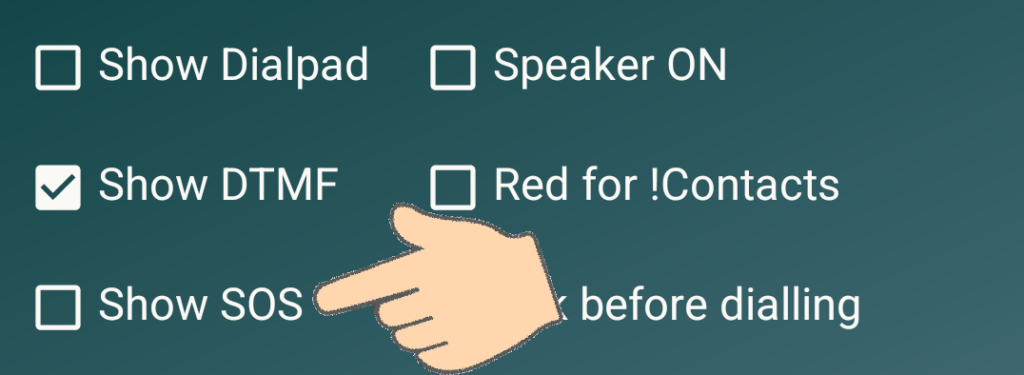
Elder Dialler includes an “SOS” feature which displays a SOS button on the Home Page.
Unlike regular SpeedDial buttons, the SOS feature can be used to call multiple contacts one after the other in a specific order.
Contacts are called in turn, and when an identified contact answers, the SOS sequence halts.
A ‘Long Press’ on the SOS button starts the calling sequence.
SOS stops when a SOS contact answers the call or CANCEL is pressed.
Refer to the Advanced section for details on the AutoSOS function which automatically progresses through contacts assigned to SOS based on a time delay.
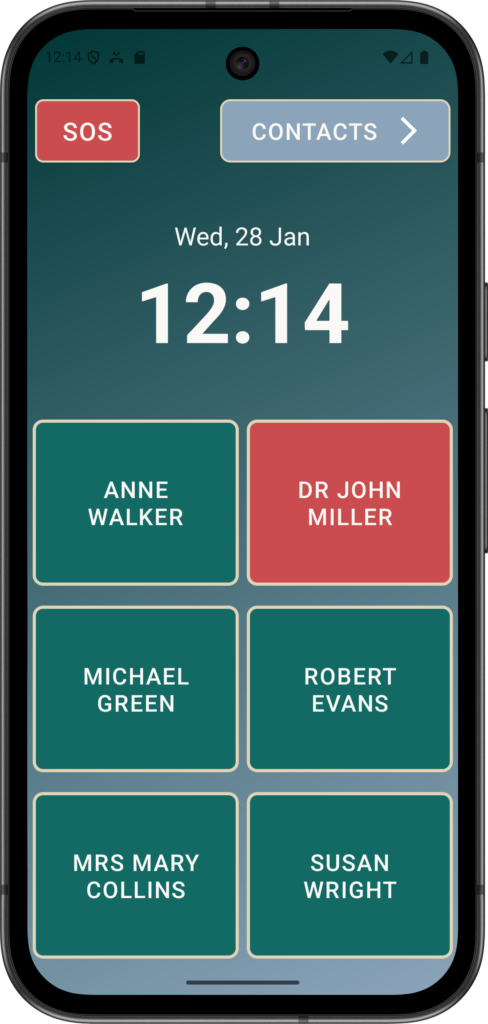
SOS button being displayed on the Home screen when Show SOS is enabled
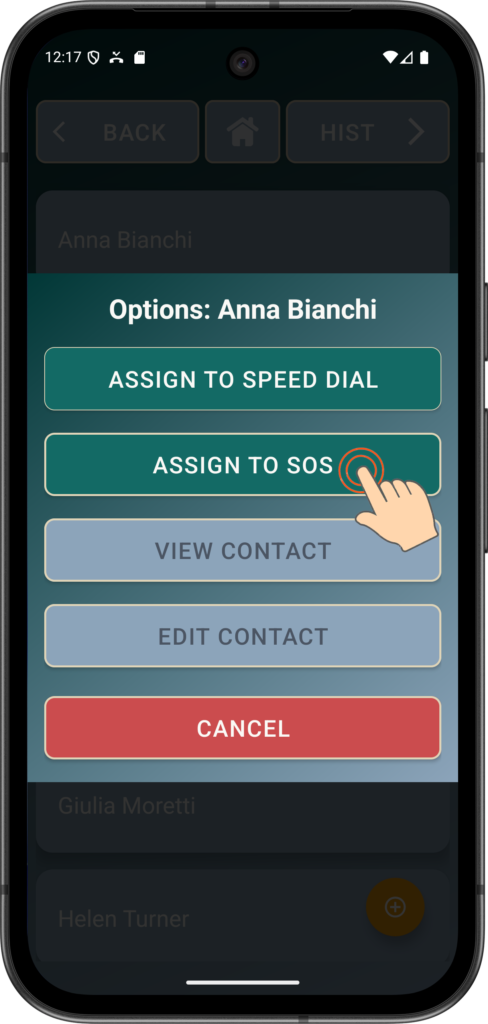
Click “Assign to SOS” to assign the contact to the SOS calling sequence.
Contacts assigned for the SOS are called in order or entry.
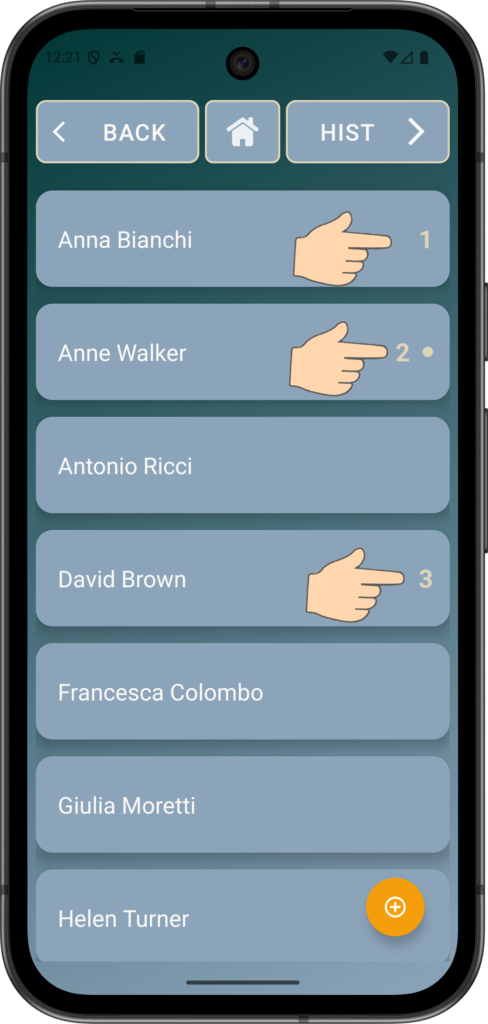
In this example, Anna Bianchi is first SOS contact, Anne Walker is second and David is third.
Incidentally, Anne Walker is also assigned to a SpeedDial button as shown by the marker.
Hence pressing the SOS button will make a call to Anna, then Anne then David – in that order.
Ask before Dialling
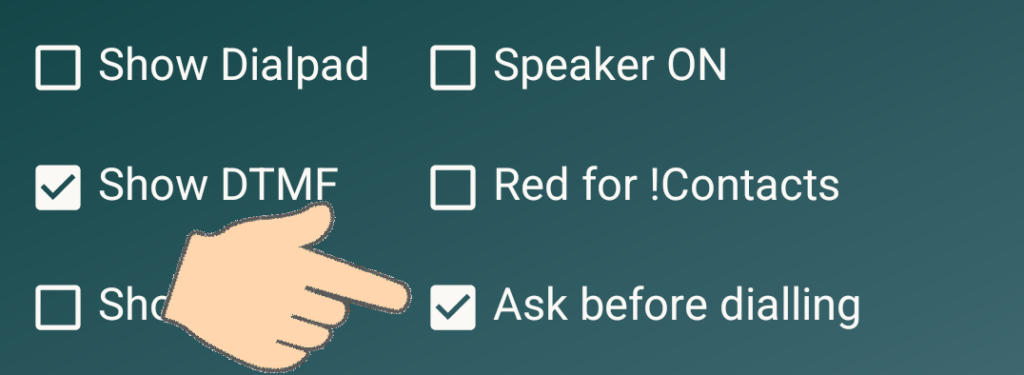
Elder Dialler includes an “Ask before dialing” option to protect elderly users from accidental or unintended calls.
Many older users may experience reduced dexterity, tremors, or slower reaction times, which can lead to unintentional taps on the screen. By adding a clear confirmation step before a call is placed, the app gives users a moment to verify that they are calling the correct person, reducing stress, embarrassment, and confusion.
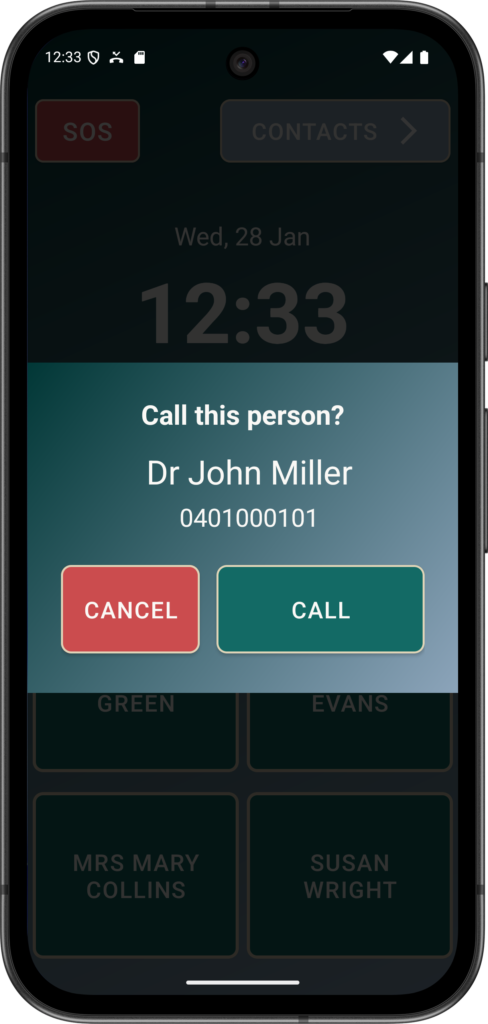
This extra prompt helps maintain confidence and independence while ensuring calls are made deliberately, especially in situations where a mistaken call could cause concern for family members, carers, or emergency contacts.
If this checkbox is OFF, then the call is made immediately without any prompt.
Themes

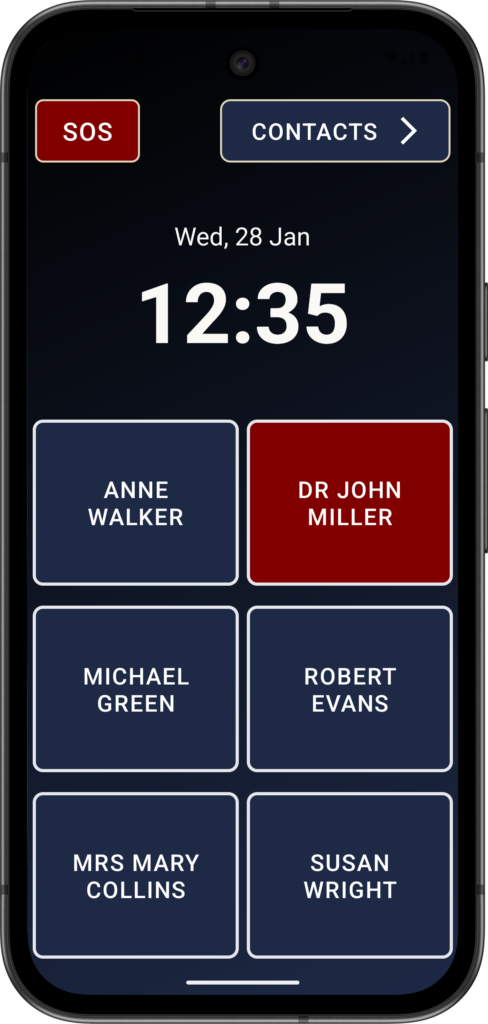
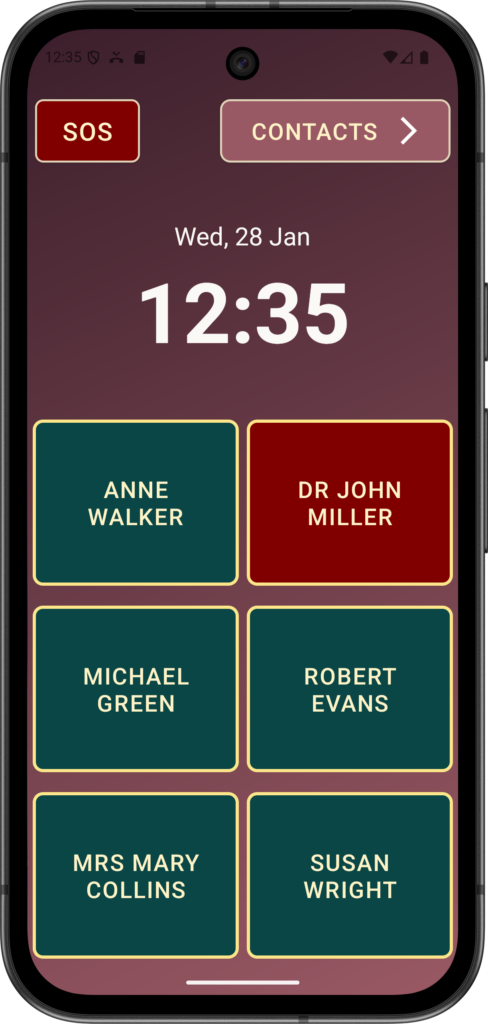
Elder Dialler offers a choice of themes to make the app more comfortable and accessible for a wide range of elderly users.
Theme options allow carers or users to select colours that reduce eye strain, improve readability, and suit different lighting conditions, such as daytime, evening, or low-light environments where bright displays can be overwhelming.
Normal Theme
Dark Theme
Warm Theme
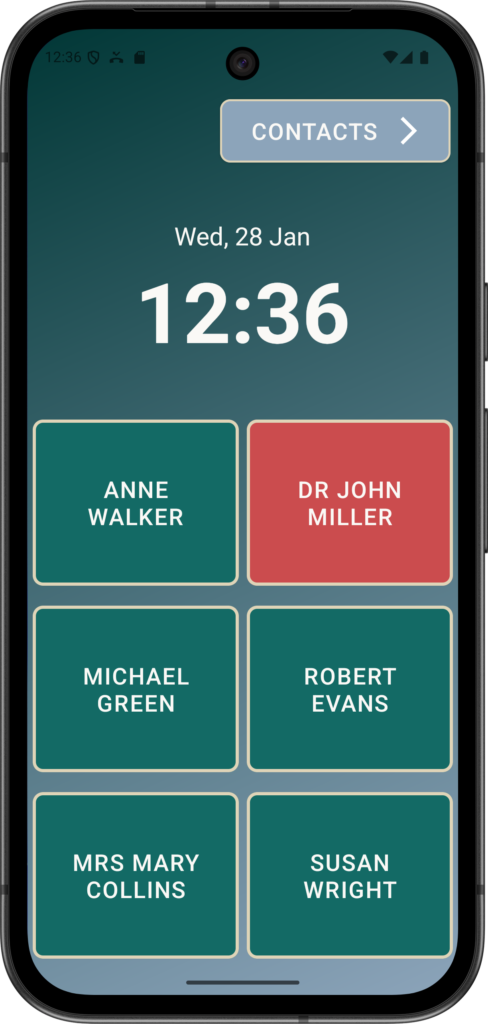
Normal size (Default)
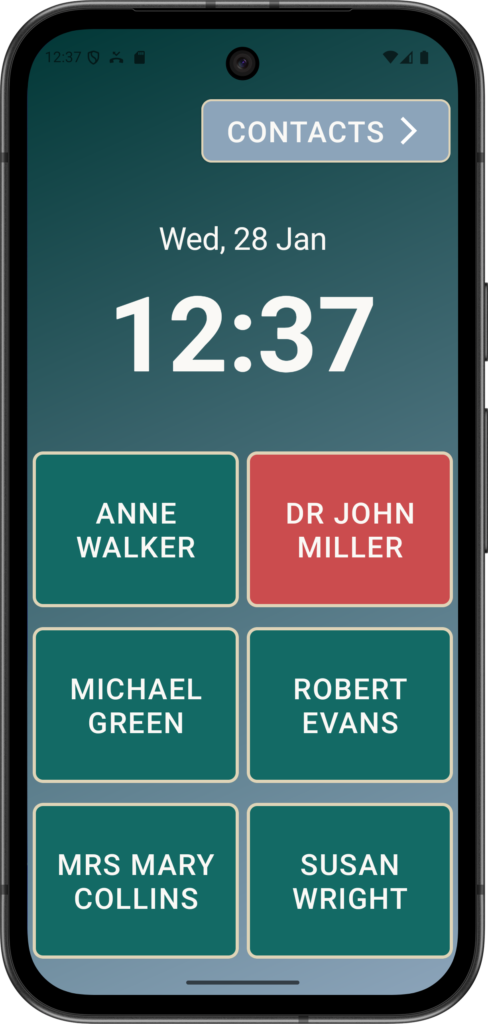
Large Font Size
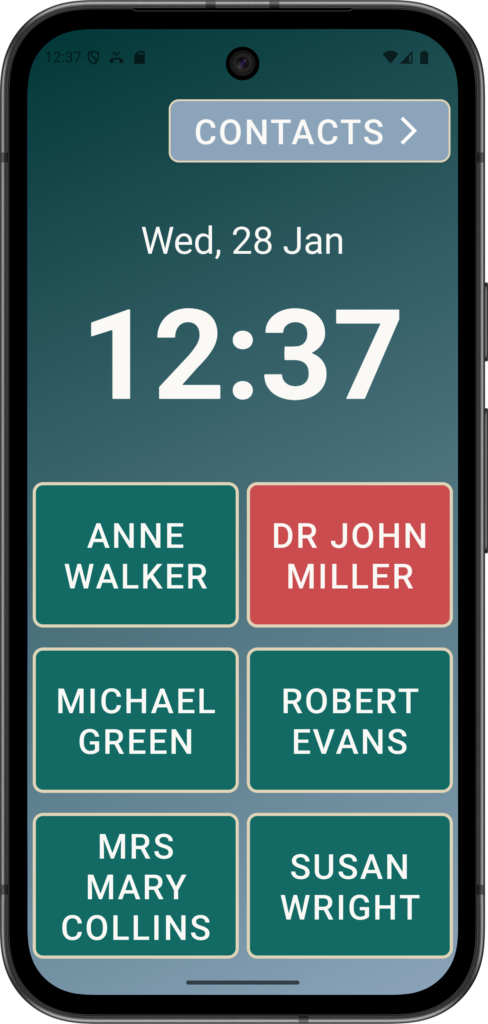
Huge Font Size
Font Size

The ability to adjust font size in Elder Dialler is essential because vision changes are a natural part of ageing, and small or tightly spaced text can make using a phone difficult, tiring, or frustrating for older users.
Larger, clearer text improves readability, reduces eye strain, and helps users quickly recognise names, numbers, and buttons without needing to concentrate or re-read.
Elder Dialler ensures the interface can be tailored to individuals comfort and eyesight needs.
Speed Dials

Speed dialing is a core feature of the Elder Dialler app because it allows elderly users to place calls quickly, safely, and with confidence.
By presenting a small number of familiar contacts as large, clearly labelled buttons, the app removes the need to search through contact lists, remember phone numbers, or navigate complex menus.
This is especially important in moments of stress, urgency, or uncertainty, when simple and predictable actions matter most.
6 Speed Dials (default 2×3)
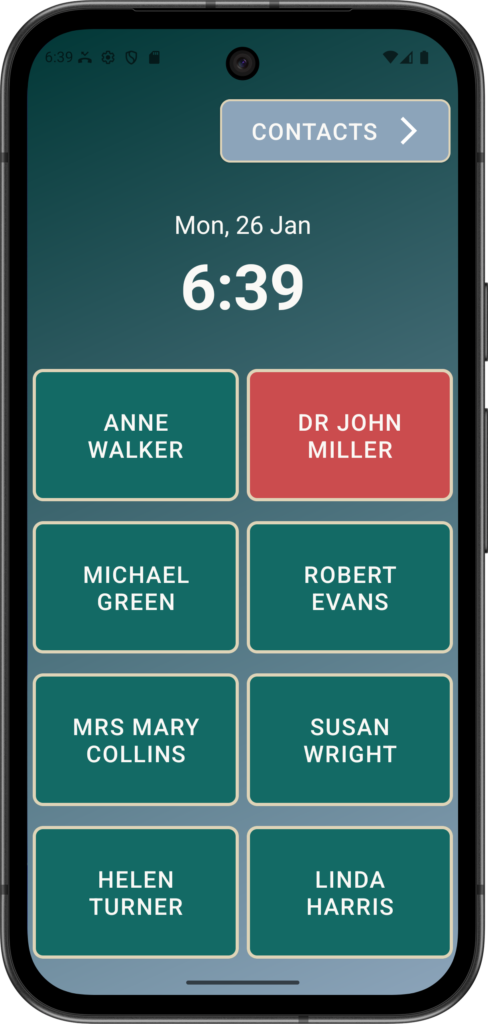
8 Speed Dials (2×4)
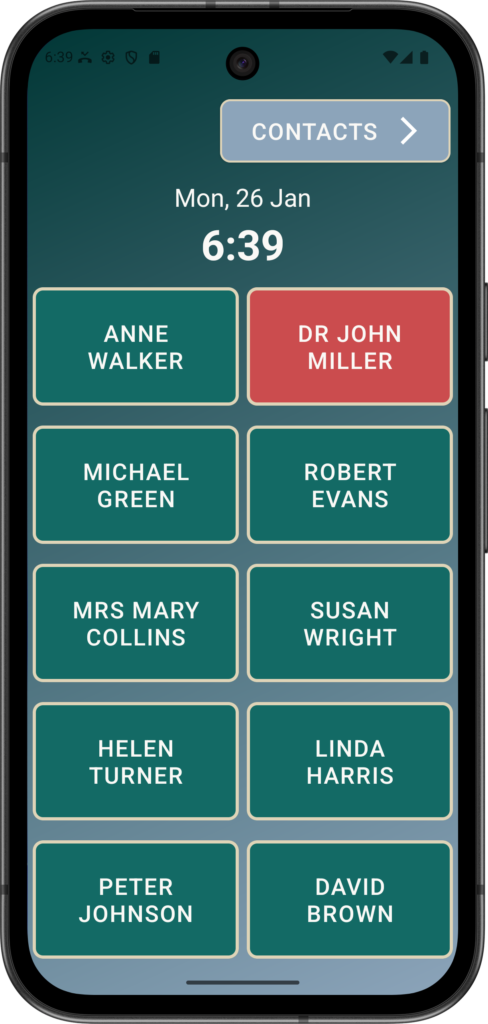
10 Speed Dials (2×5)