Elder Apps. Clear. Simple. Accessible.

Elder Dialler - calling made simple

Elder Dialler provides large buttons, clear text, and simple actions designed specifically for ease of use.

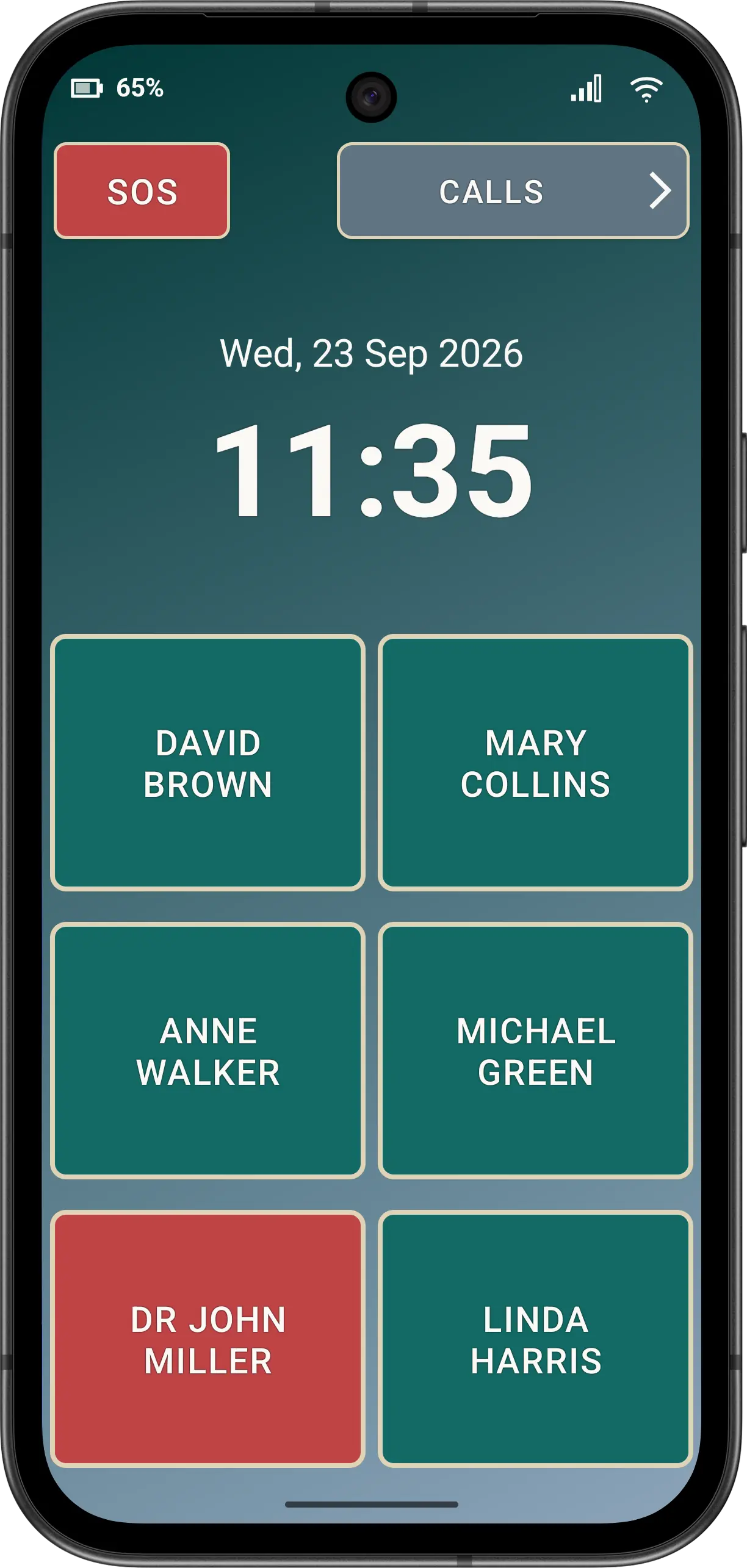
Text buttons Pinned Elder Dialler main screen showing six large text speed-dial buttons for fictitious contacts.
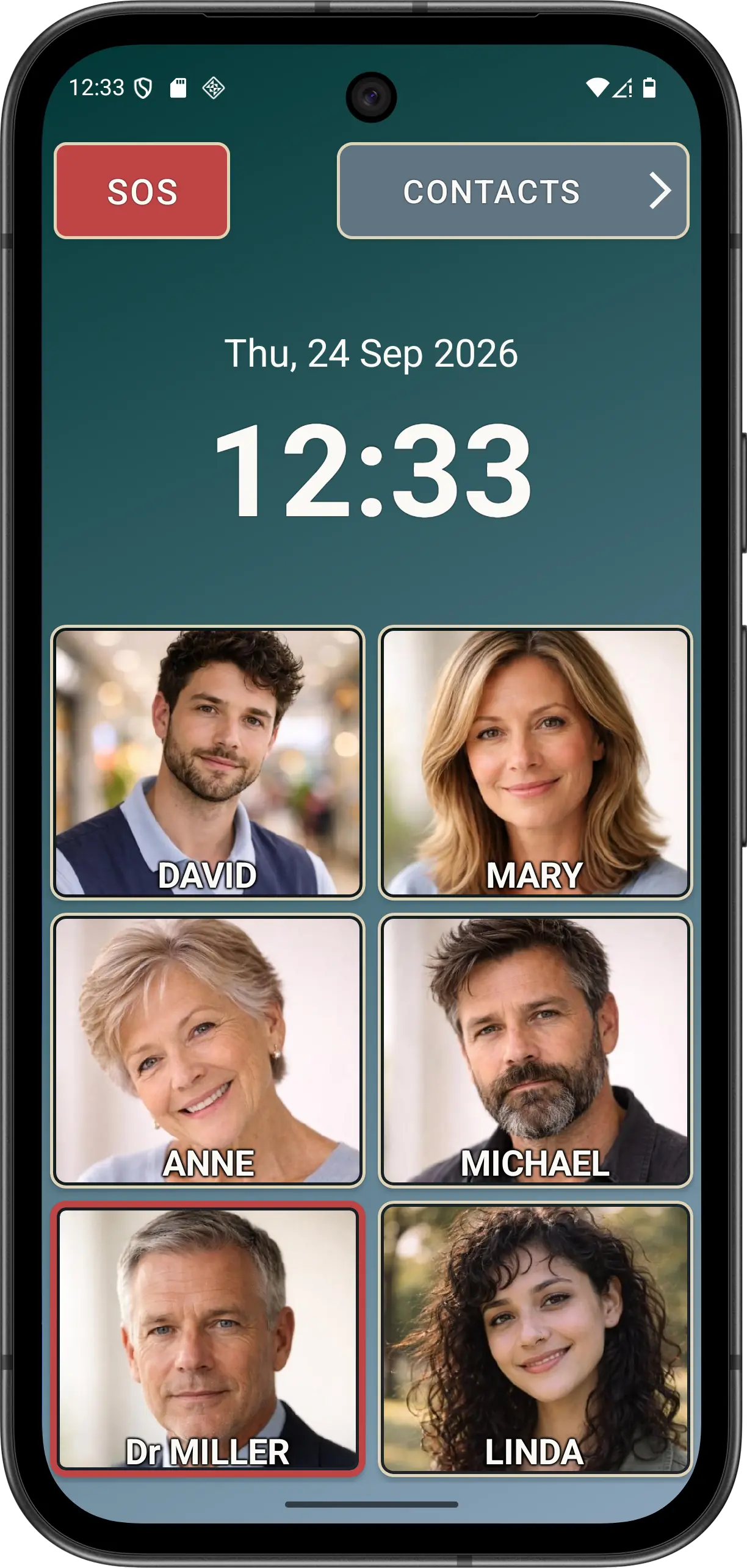
Image buttons (Advanced) Pinned Elder Dialler main screen showing Advanced contact-image speed-dial buttons without an emergency exclamation badge.

Clearer everyday calling

Focus on the people you call most

Elder Dialler replaces the need to remember long phone numbers with easy one‑click speed dial buttons.

Large speed-dial buttons

Elder Dialler helps you easily connect with friends, family and helpers through 6, 8 or 10 speed-dial buttons.

Clear calling screens

See who is being called, confirm the choice when enabled, and use large in-call controls.

Call Blocking and Filtering

Call Blocking can be used to stop annoying callers and scammers. Advanced Safe Call Mode can reduce incoming calls from numbers that do not match the phone's Contacts list.

Understand the limitations

Start here

Choose the section you need

The main website is organised around setup, normal use, pinned use and preferences.

Initial Setup

Select this area to help you install Elder Dialler from the app store and run Guided Setup so the phone starts with a sensible configuration.

Initial Setup

Normal Mode

Select this area when the app is not pinned and you want to use contacts, the Dial Pad, call history, blocking or other app actions.

Normal Mode

Pinned Mode

Select this area for everyday instructions when Elder Dialler has been pinned and the phone user mainly needs simple calling, SOS and call-history actions.

Pinned Mode

Preferences

Select this area to understand each setting and decide which free or Advanced options suit the person using the phone.

Preferences

One app, two experiences

Set it up in detail. Use it with confidence.

Guided configuration

Guided Setup steps through speed dials, SOS contacts and Pin Screen in the free version, then includes Safe Call Mode when Advanced is available.

A focused main screen

Pin Screen is a free option that uses Android screen pinning to help prevent accidental navigation away from the calling app. It is not a security lock.

Honest safety boundaries

Advanced Safe Call Mode, call blocking and SOS are explained with their limitations, without promising complete scam or emergency protection.

App availability

Google Play release information will appear here

Elder Dialler is being prepared for Google Play release. A public download link and confirmed Advanced purchase information will be added only when the Play listing is available.

Prepare for installation