Install and prepare
Use the authorised product testing installation route, confirm Android 10 or later on a phone-capable device, and select Elder Dialler as the default phone app.
Installation informationPrepare the Android phone, run the seven-stage Guided Setup, review preferences and enable Elder Mode only when it suits the phone user.
Recommended order
Complete each stage in order so calling and safety choices can be checked before regular use.
Use the authorised product testing installation route, confirm Android 10 or later on a phone-capable device, and select Elder Dialler as the default phone app.
Installation informationChoose people, speed dials, SOS contacts, available Advanced options and Elder Mode, then review the summary.
Run Guided SetupCheck calling, display, font, layout, Show +, Elder Mode and the Advanced feature boundary.
Review PreferencesMake a normal call, review missed-call behaviour and practise SOS only with consenting personal contacts.
First-call checksAfter configuration and familiarisation, request Android screen pinning for the focused Elder Mode experience.
Set up Elder ModePermissions are requested when needed. Calling, Contacts and notifications are not presented as one undifferentiated startup request. Contact creation and editing are completed by Android Contacts.
Safety boundary: Do not use an emergency-service number while learning the app. SOS makes ordinary telephone calls and does not guarantee a connection, answer or response.
Guided Setup
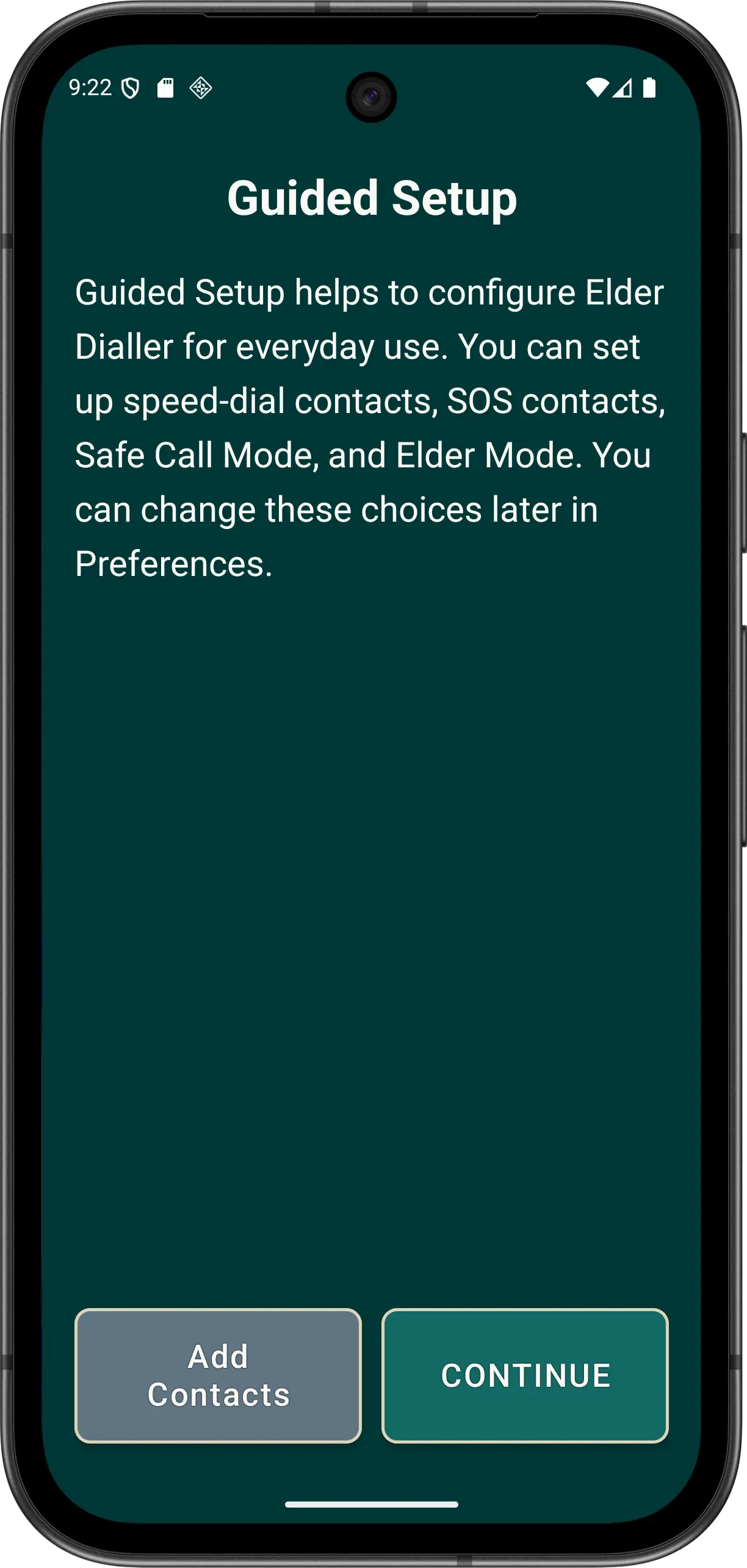
Guided Setup begins after Android confirms Elder Dialler as the default phone app. It is optional and resumable until completed. If the phone has no contacts, use ADD CONTACTS on the welcome screen before continuing.
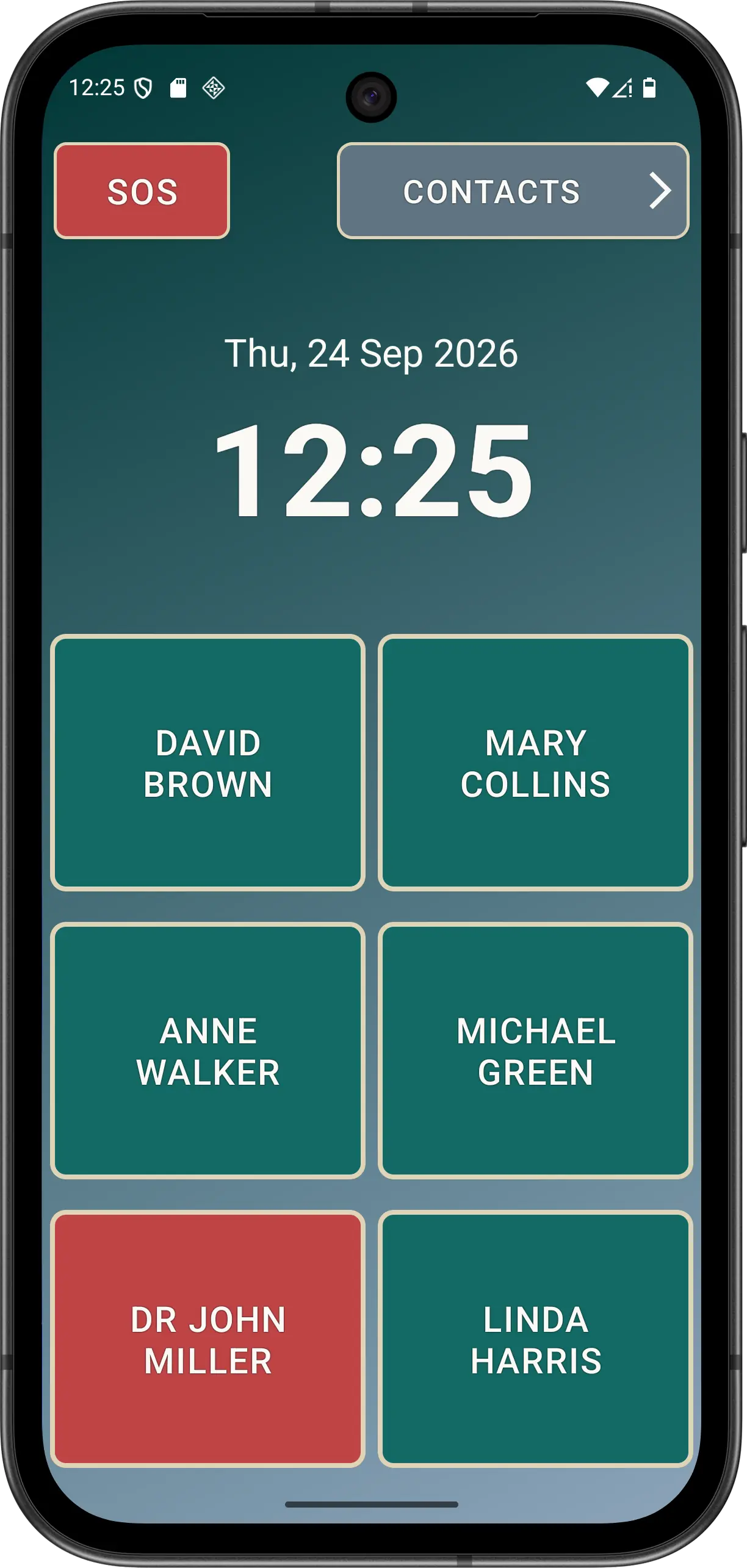
Disclaimer: All names, contact details, and images displayed on this website and shown within the Elder Dialler application are entirely fictitious and are used for demonstration and illustrative purposes only. Any resemblance to real persons, living or deceased, is purely coincidental. No content is intended to represent, simulate, or replicate any actual individual.