Choose call and display preferences
Use Preferences for the complete manual set of free and Advanced configuration controls.
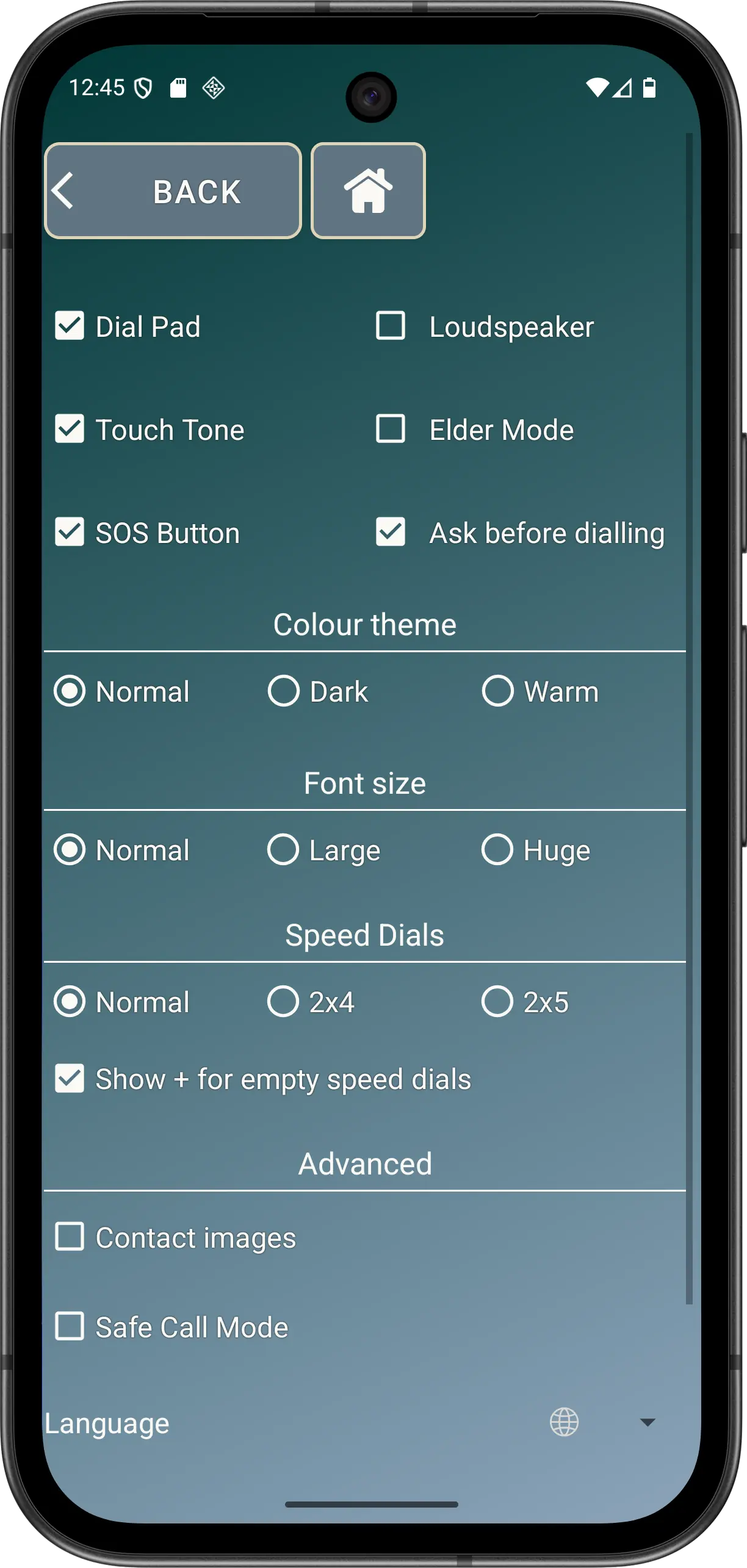
Free preferences
Calling selectors
- Dial Pad
- Shows the manual number-entry screen. It is optional because speed dials can avoid typing long numbers.
- Touch Tone
- Makes DTMF controls available during a call, such as for automated telephone menus.
- SOS Button
- Shows SOS on the main screen. SOS contacts and their order must be configured separately.
- Loudspeaker
- Turns on loudspeaker when a call connects. Review call volume and suitability with the phone user.
- Elder Mode
- Uses Android screen pinning for a focused experience. It is free and is not a security lock.
- Ask before dialling
- Shows the common confirmation before ordinary calls, including calls started from supported SOS prompts.
Theme
Choose Normal, Dark (high contrast) or Warm.
Font
Choose Normal, Large or Huge. The app uses responsive, inset-aware layouts, but the choice should still be checked on the actual phone.
Speed dials
Choose 6, 8 or 10 positions. Show + for empty speed dials controls whether editable empty positions show a + action; Elder Mode hides empty positions regardless.
Advanced
- Contact images
- Shows current resolved contact photos where available, with text or initials fallbacks.
- Language
- Follow the system language or choose English, Simplified Chinese, Japanese, Hindi, Italian, Greek or Croatian.
- Auto SOS
- Choose Disabled, 10, 15, 20, 30 or 45 seconds. Auto SOS can continue or cycle through configured personal contacts until stopped.
- Safe Call Mode
- Filters incoming calls using usable Contacts access. It rejects unmatched, invalid or private numbers but fails open if Contacts access is unavailable.
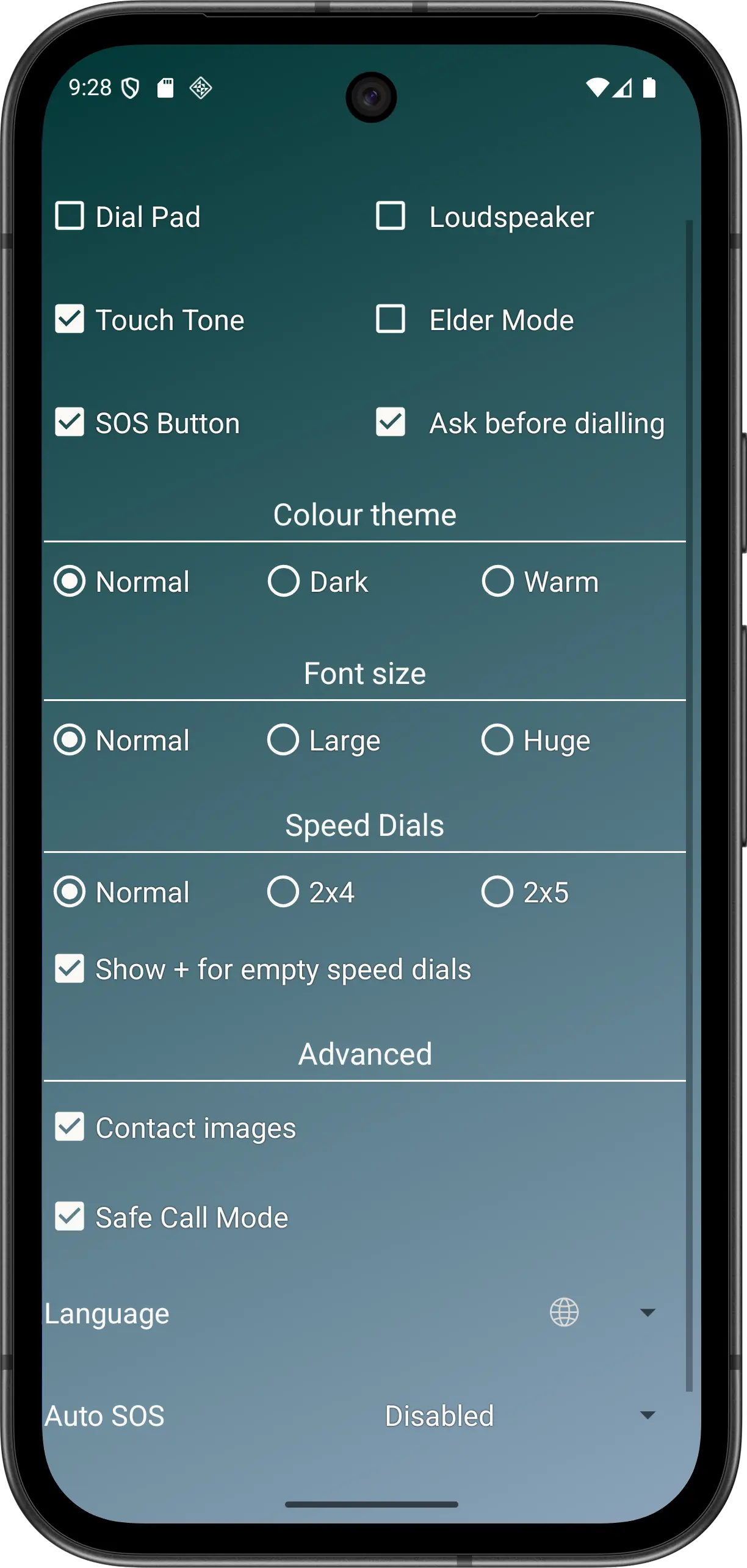
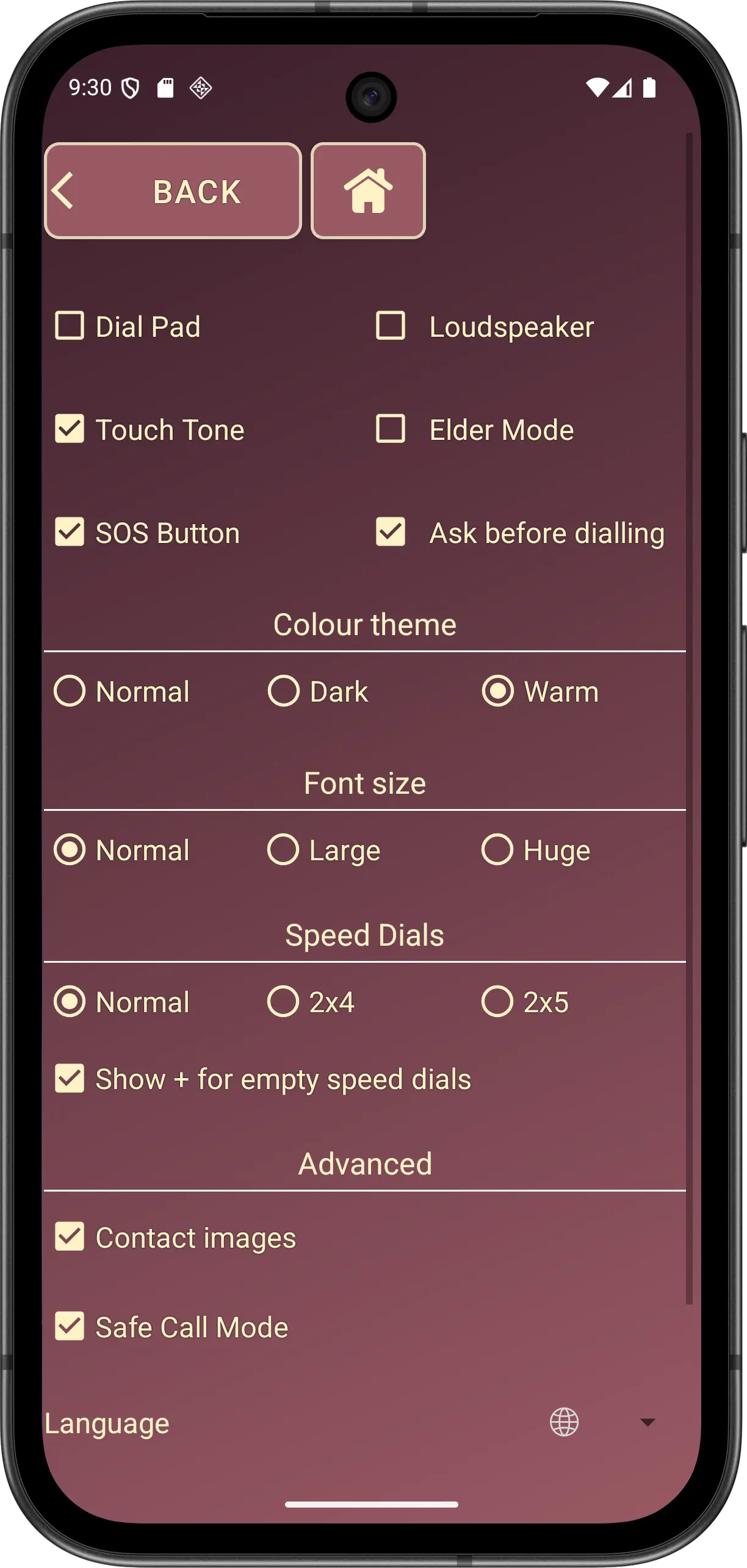
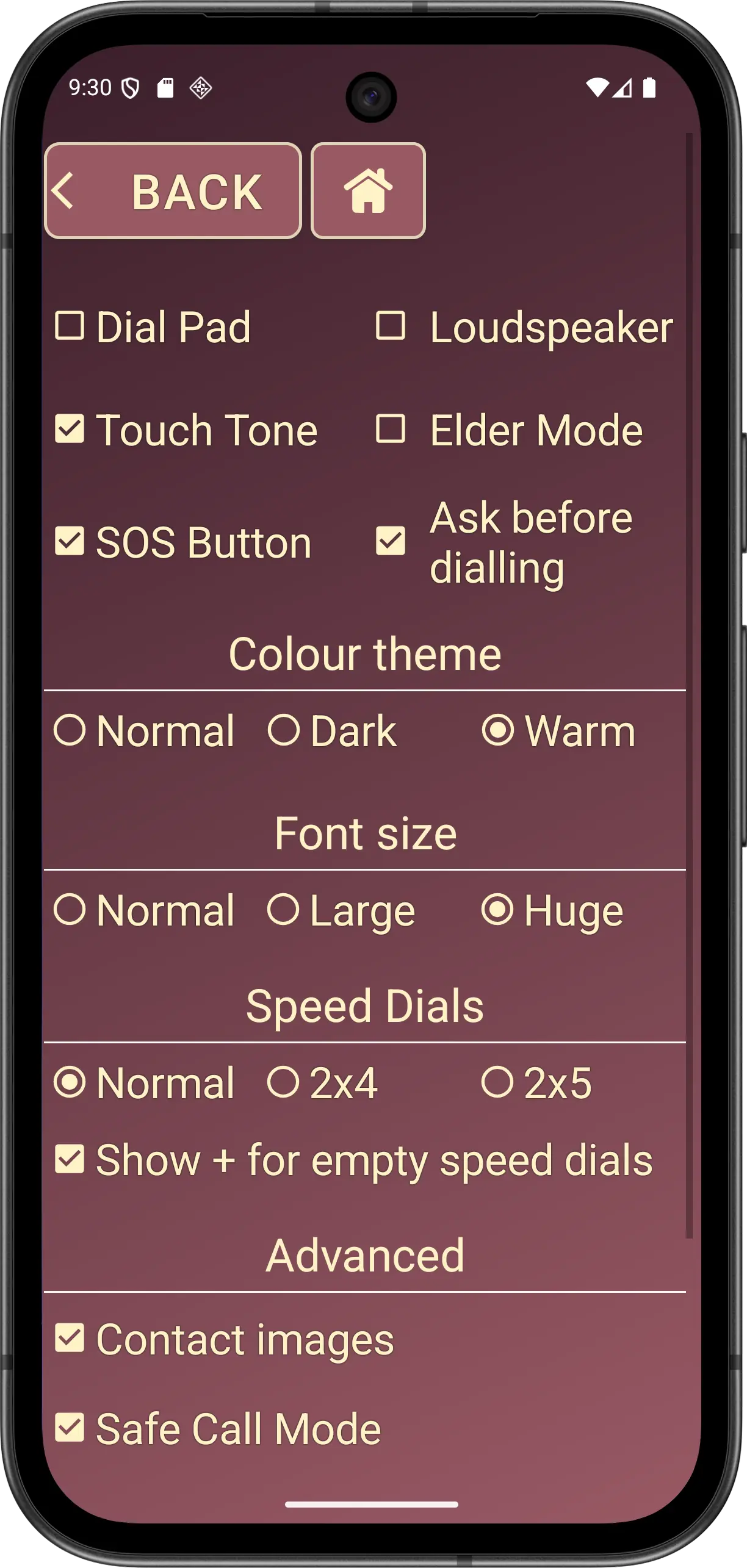
Advanced boundary: Contact images, Language, Auto SOS and Safe Call Mode require the one-time Advanced entitlement. Elder Mode, themes, fonts and Show + do not.
Disclaimer: All names, contact details, and images displayed on this website and shown within the Elder Dialler application are entirely fictitious and are used for demonstration and illustrative purposes only. Any resemblance to real persons, living or deceased, is purely coincidental. No content is intended to represent, simulate, or replicate any actual individual.