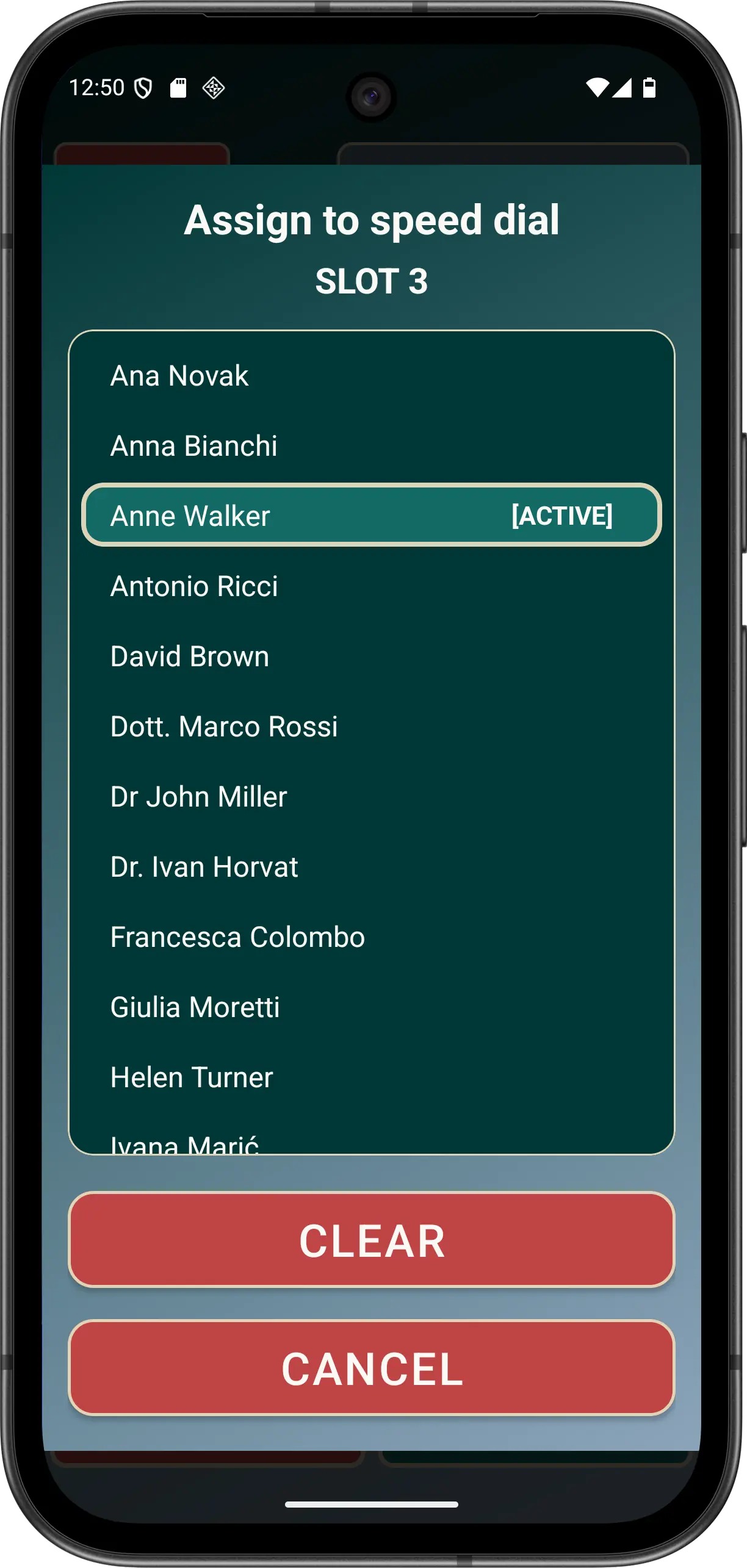
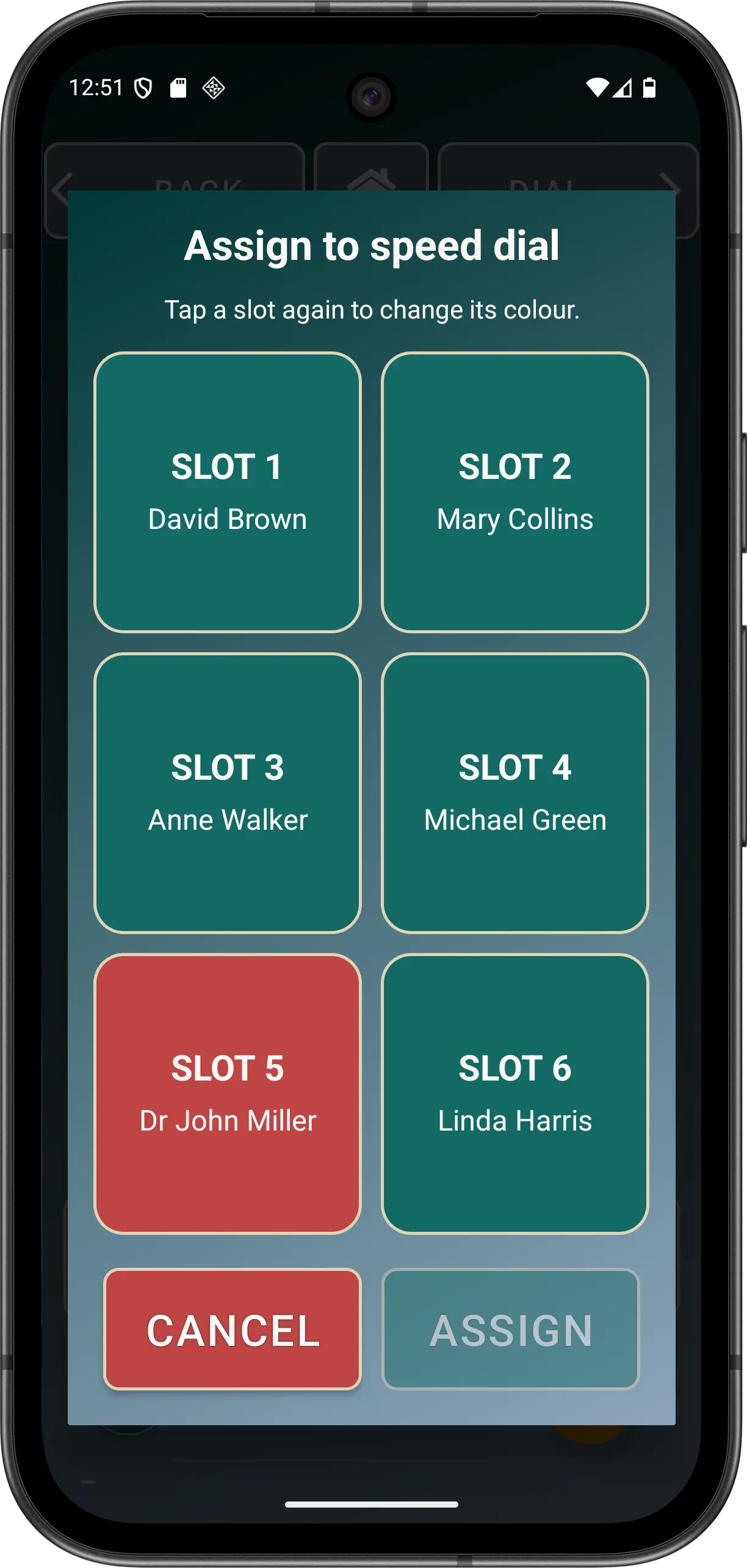
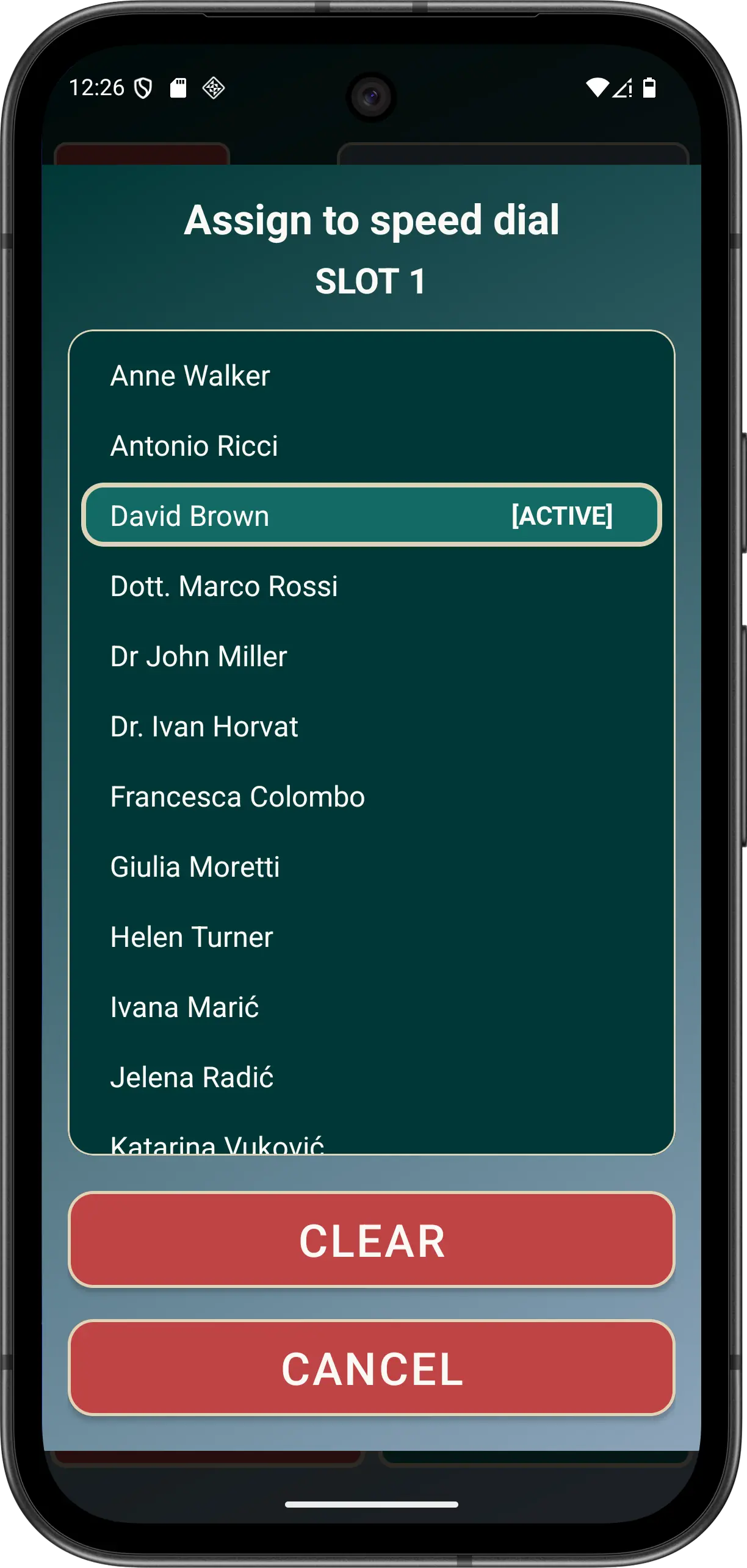
Choose the people and phone numbers that should appear on the large 6, 8 or 10-position main screen.
Two assignment routes
BUTTON
Long-press a position
In Normal Mode, press and hold an editable empty or assigned position, then select the intended contact-number row.
CONTACT
Long-press a contact
Open CONTACTS, press and hold the intended phone-number row, then assign or remove its speed-dial position.
Check the exact number first. Multiple numbers for one person can appear separately.
Choose 6, 8 or 10 positions in Preferences.
Use Show + for empty speed dials when useful. Disabling it preserves the layout but removes the empty-position action; Elder Mode hides empty positions regardless.
Assign the most familiar contacts first. Text remains the fallback even when Advanced contact images are enabled.
Use CLEAR only to remove that slot assignment. CLEAR does not delete the Android contact, SOS role or call history.
Check refreshed details after a Contacts change. Stored assignments update from the provider while retaining a safe fallback if a contact row is temporarily unavailable.
Use an editable position in Normal Mode.Assign the intended phone-number row from Contacts.Confirm the intended slot; CLEAR removes only the current assignment.
Accessibility and missed calls
TalkBack distinguishes assigned positions from editable empty positions without announcing decorative content twice. Assigned speed dials can also show a per-number missed-call marker.