
Advanced Features
Elder Dialler includes advanced features that further support safety, clarity, and independence for elderly users while remaining simple to use.
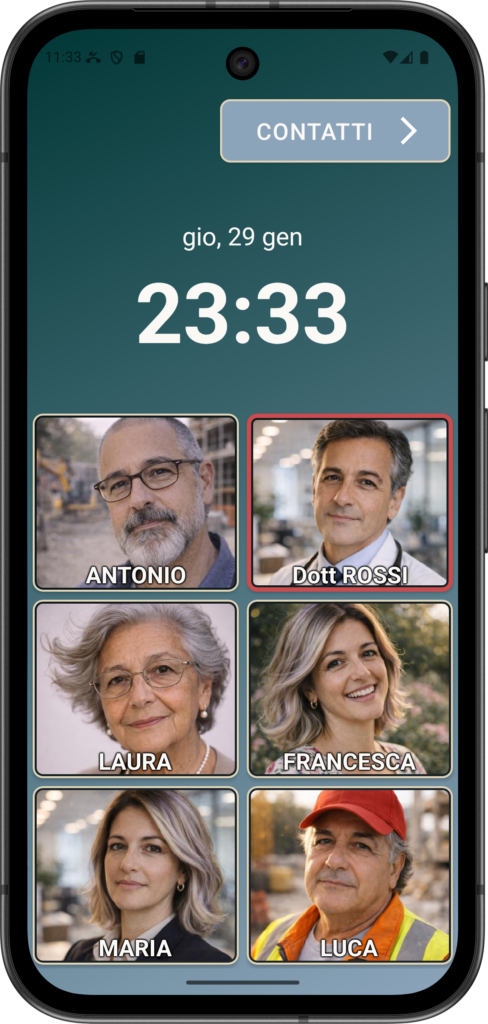
Contact images help users recognise people instantly without relying on reading or memory, which is especially valuable for users with declining eyesight or cognitive challenges. Seeing a familiar face reduces hesitation and lowers the risk of calling the wrong person.
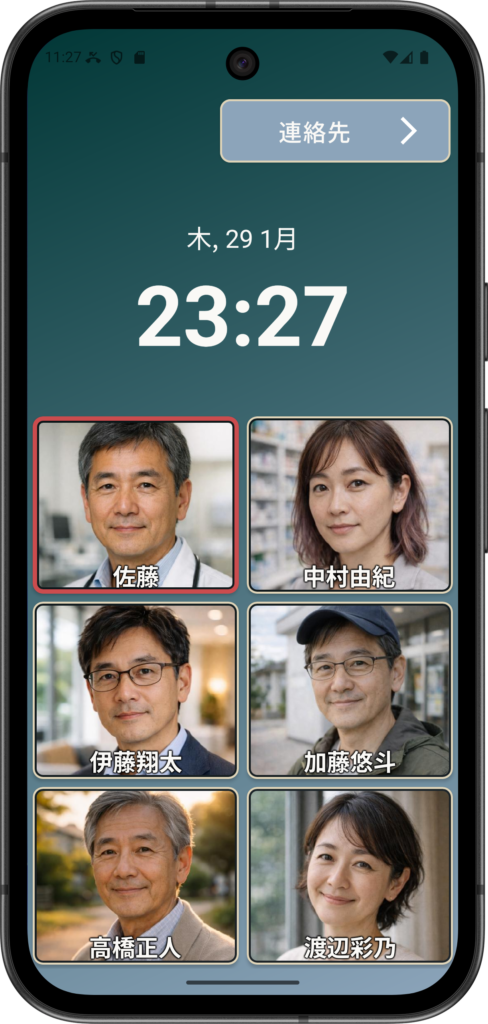
The ability to change the language ensures the app can be used comfortably in the user’s preferred or native language, helping reduce confusion and making instructions, labels, and prompts easier to understand. This is particularly important for users who may not be confident reading a second language or who feel more at ease communicating in their mother tongue. From a practical perspective, multilingual support also allows carers and families across different countries and cultures to configure the app appropriately, making Elder Dialler suitable for global use rather than being limited to a single region or demographic.
The screen lock feature prevents accidental exits, unwanted changes, or unintended actions by limiting interaction to calling only. This is ideal for users with tremors, confusion, or reduced motor control, and for carers who want to ensure the phone remains in a safe, predictable state.
The Auto SOS feature seeks to automate requests for help, so that calls for help are not unanswered and even if one person is not available to respond, others can be.
Together, these features enhance accessibility and confidence while preserving Elder Dialler’s core goal of simple, reliable calling that supports the needs of the older community.
Disclaimer:
All names, contact details, and images displayed on this website and within the Elder Dialler application are entirely fictitious and are used for demonstration and illustrative purposes only. Any resemblance to real persons, living or deceased, is purely coincidental. No content is intended to represent, simulate, or replicate any actual individual.
Contact Images
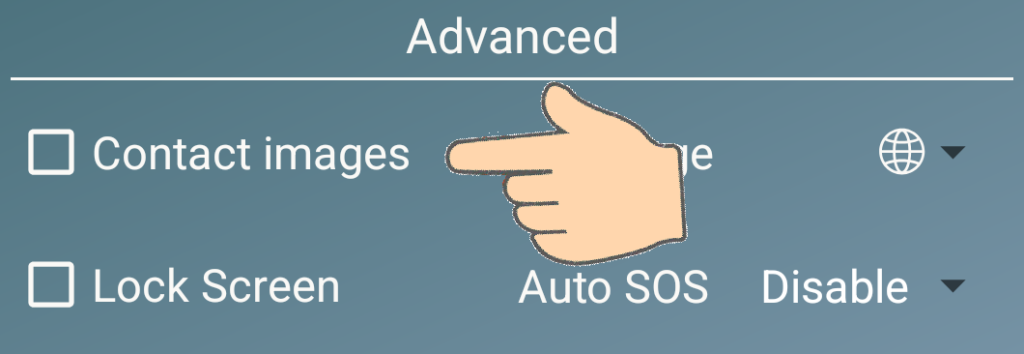
Contact images help elderly users recognise who they are calling at a glance, reducing the need to read names or remember details.
Seeing a familiar face provides reassurance, lowers the risk of mistakes, and makes calling feel more natural and confident.
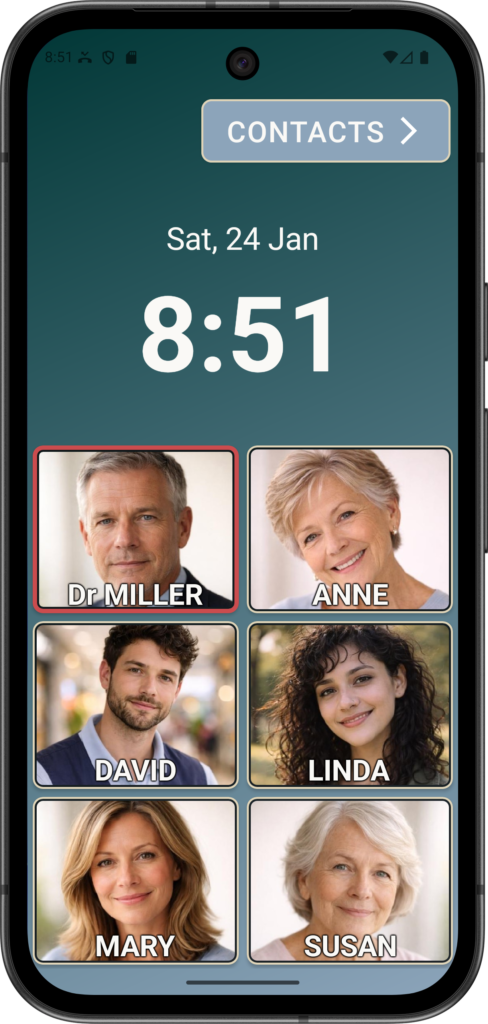
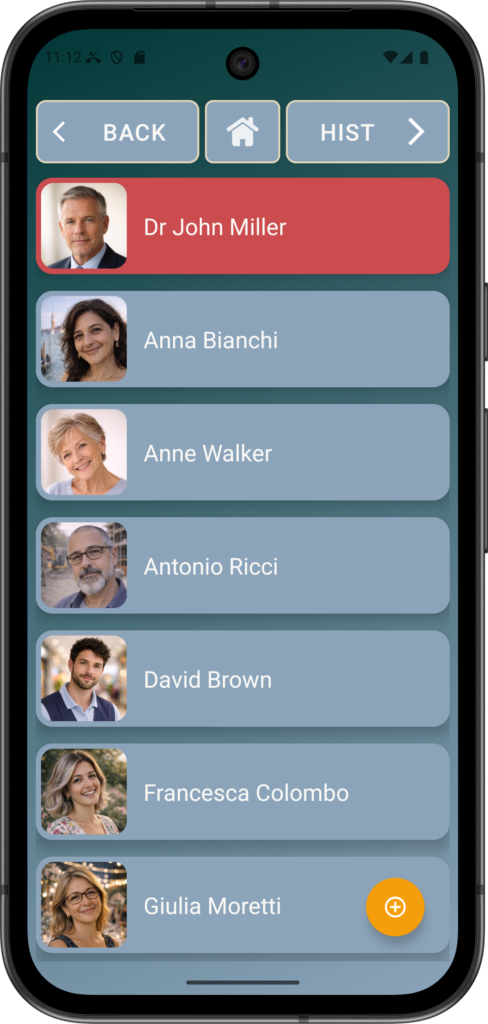
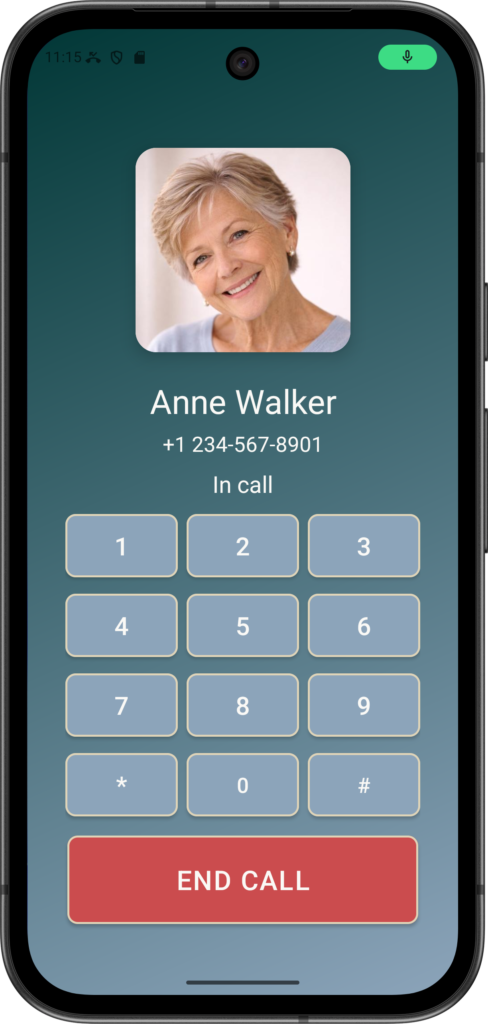
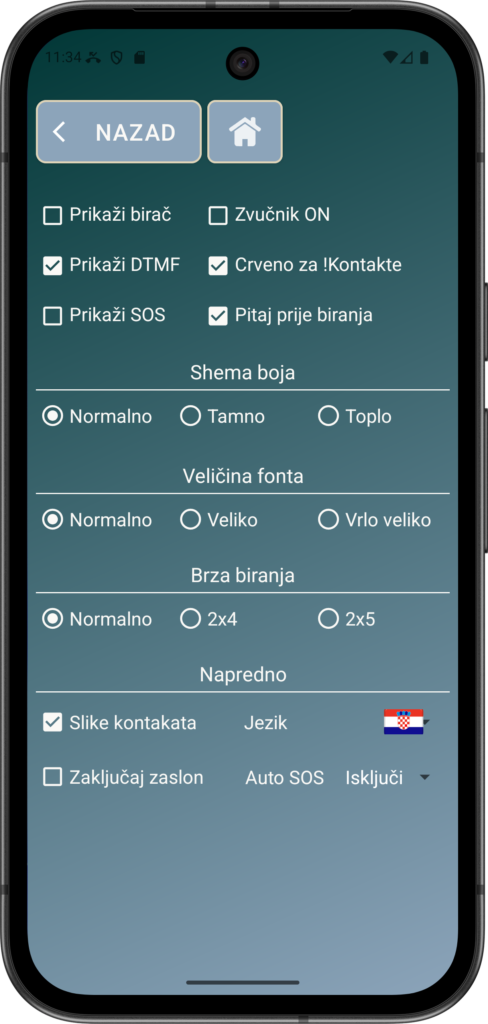
On selection, images are applied to Speed Dial buttons, Contact lists, Calls and the Call History.
Languages
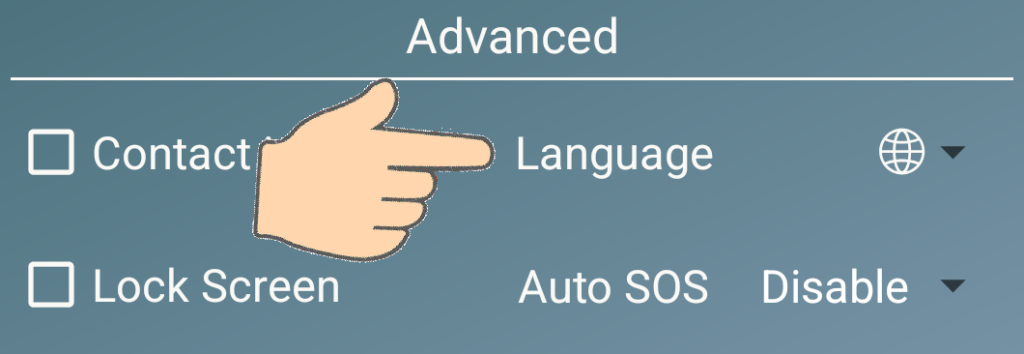
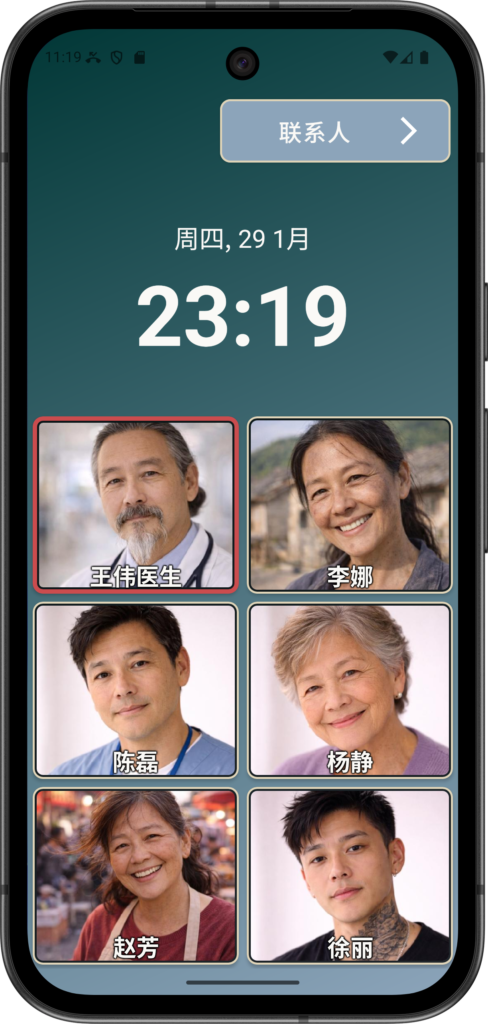
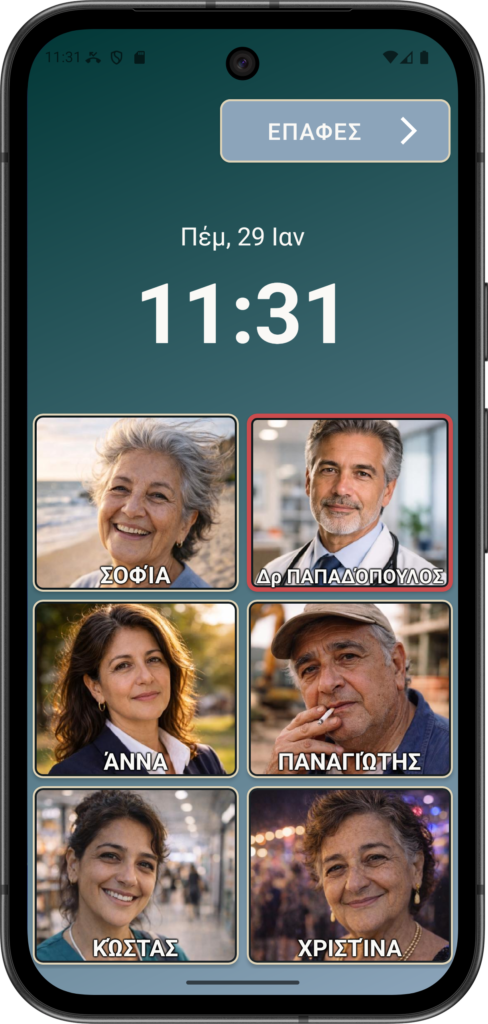
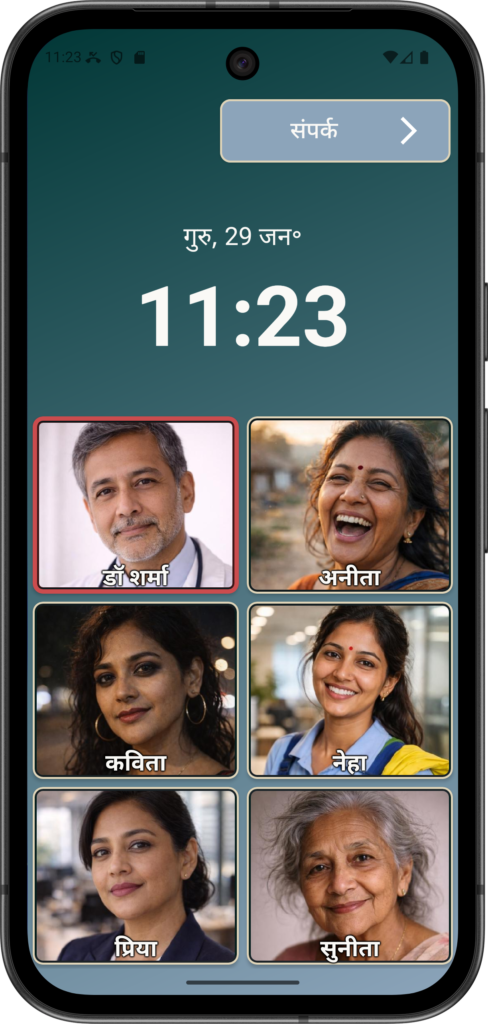
By default, Elder Dialler seeks to use the system language used by the phone (if supported), as indicated by the white globe icon. If desired, the language used by Elder Dialler can also be different to the system language on the phone by use of the language selector.
Where the system language is not one of the six supported languages, then English will be used as a default although this can be changed using the language selector.
Supporting multiple languages makes Elder Dialler far more inclusive and effective, particularly for elderly users and carers who may have different language abilities.
Many older people are most comfortable reading and interacting in their native language, even if they understand others, and unfamiliar languages can increase confusion, hesitation, or mistakes.
By offering clear labels, prompts, and confirmations in the user’s preferred language, the app reduces cognitive load, builds confidence, and improves safety.
Elder Apps is also not adverse to adding additional languages in subsequent software updates.






Lock Screen
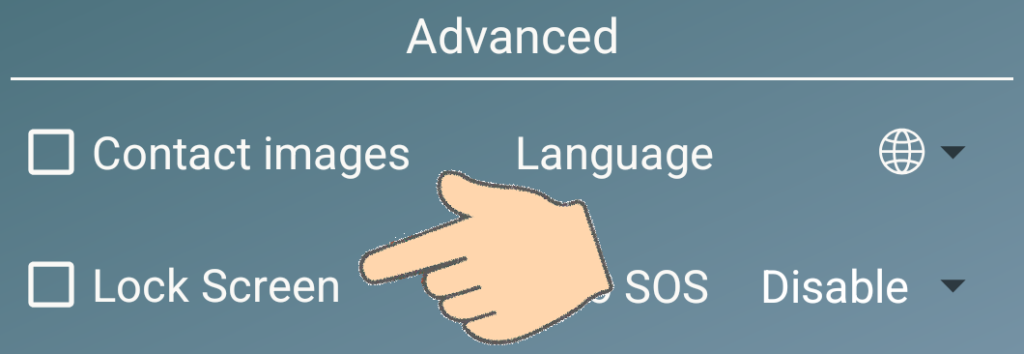
The Lock Screen preference turns the smartphone into a single-purpose, easy-to-use calling device, significantly increasing confidence, safety, and independence for elderly users while reducing the need for ongoing technical support from carers and family members.
The Lock Screen preference pins the phone to the Elder Dialler application so that the device cannot be exited to other apps or the home screen easily.
When enabled, the phone remains locked into Elder Dialler until the preference is deliberately turned off.
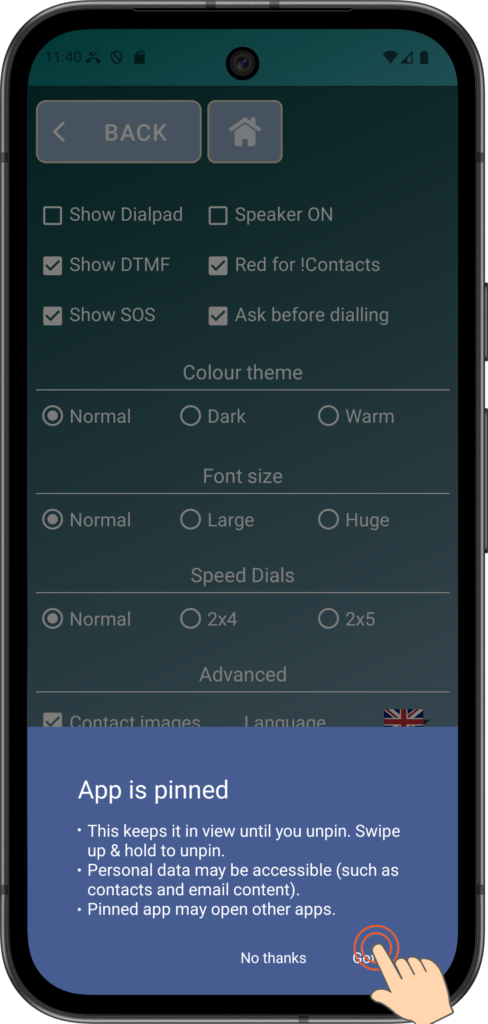
After selecting ‘Lock Screen’, press “Got it” to confirm your understanding.
This will enable the screen lock. Press the HOME button to return to the main screen.
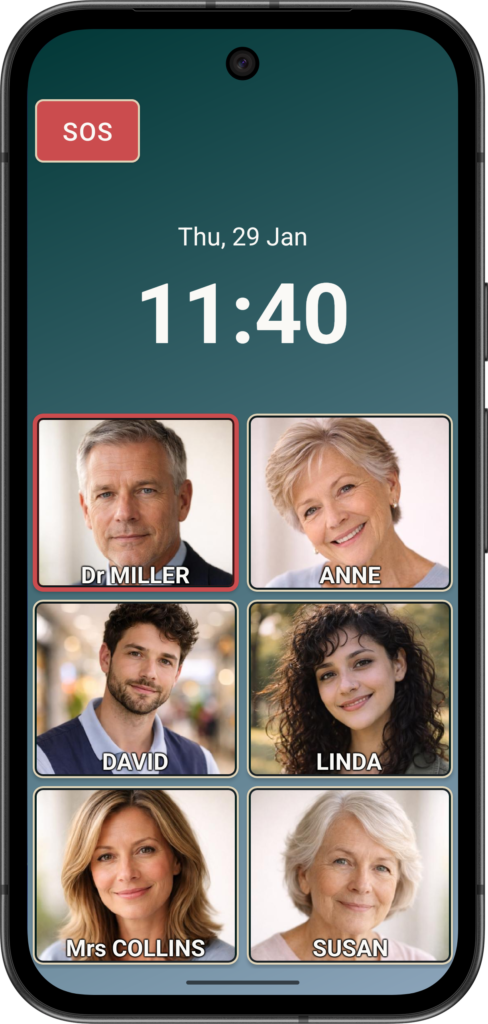
When back at the main screen and locked, there is no CONTACTS button displayed, hence no obvious way to access any controls, settings or contacts.
To turn off this mode, Press-And-Hold the clock display for at least 5 seconds. This will return the CONTACTS button and restore normal operation.
Auto SOS
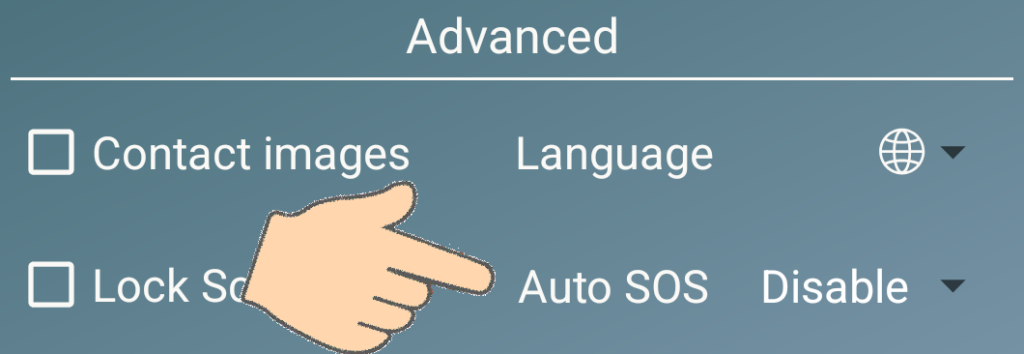
Auto SOS is one of the Advanced functions which enables the SOS button to dial contacts in order, automatically after the first SOS contact call is initiated.
Refer to the “Show SOS” preference setting to learn how to set up contacts to be used as SOS contacts.
The Auto SOS preference avoids the user having to press the CALL or CALL NEXT button every time before a call to the next SOS contact is made. The Auto SOS can be Disabled or set to 10,15,20, 30 or 45 second time periods.
The Auto SOS can be Disabled or set to 10,15,20, 30 or 45 second time periods. These time periods are set such that the time between SOS contacts is “short enough to avoid voicemail” but “long enough for humans to pickup the call”.
When disabled, calls to SOS contacts will require the CALL NEXT button to be pressed each time as there is no timer enabled.
When setting Auto SOS to a particular time, it is important to consider that if you call a SOS contact and move on to the next one too quickly, the phone may still be ringing, or they may answer after Elder Dialler has already hung up.
So for example, if Auto SOS is set to 20 seconds, Elder Dialler will:
- Expect that the CALL button is pressed for the first SOS contact to initiate the sequence
- Dial + ring attempt for up to 20 sec, and auto-hang up if never ACTIVE
- Apply a 20 second inter-call delay before calling again showing the name of the next contact and the countdown
- Dial + ring attempt for up to 20 sec, and auto-hang up if never ACTIVE
- Repeat steps 3 and 4 for all SOS contacts
Note: During the entire SOS sequence, the speaker will be ON irrespective of the speaker setting in the preferences.
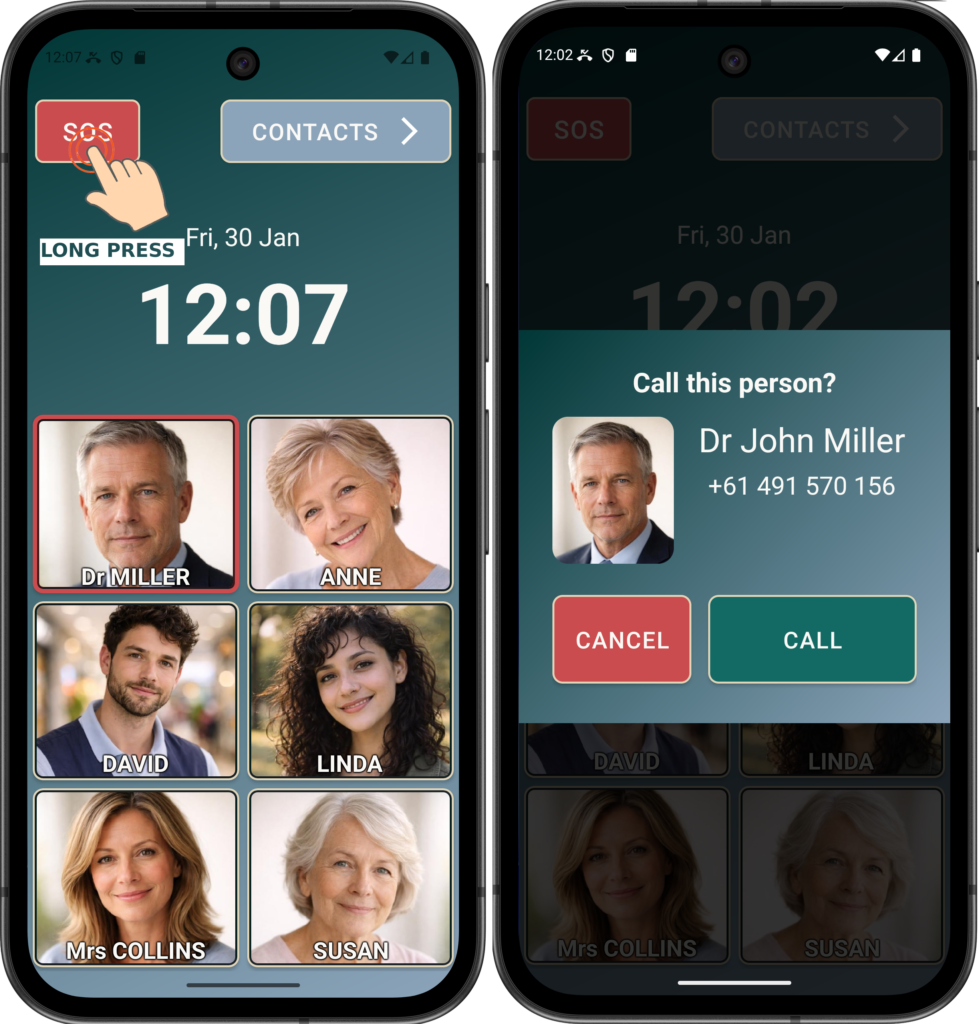
After a “Long Press” of the SOS, the call request is made to call the first SOS contact – Dr John Miller in this case. Unfortunately he did not pick up the call, hence the Auto SOS function triggers a timed delay before the call to the next SOS contact, namely Anne Walker.
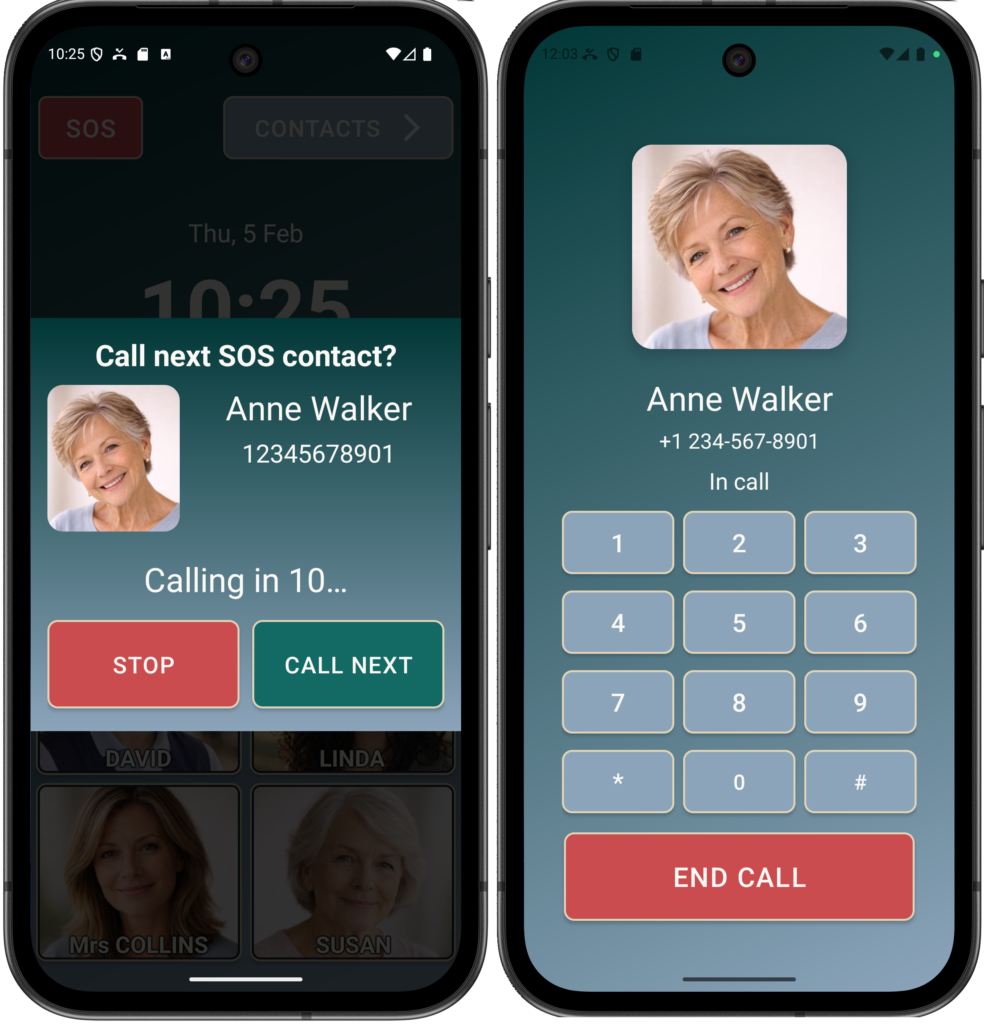
In this case, the Auto SOS function was set to a very brief 10 seconds, hence there is a delay of 10 seconds between the call to Dr Miller and the call to Anne starting.
STOP – will stop the Auto SOS function
CALL NEXT – will call the next SOS contact immediately
In this example, Anne picked up the call and with the Speaker automatically turned ON, help can be requested easily and clearly.