Use the Dial Pad
Enter, paste and correct a telephone number when the optional Dial Pad is enabled.
Enter and check a number
- Enable Dial Pad in Preferences if needed. Configuration changes are made in Normal Mode.
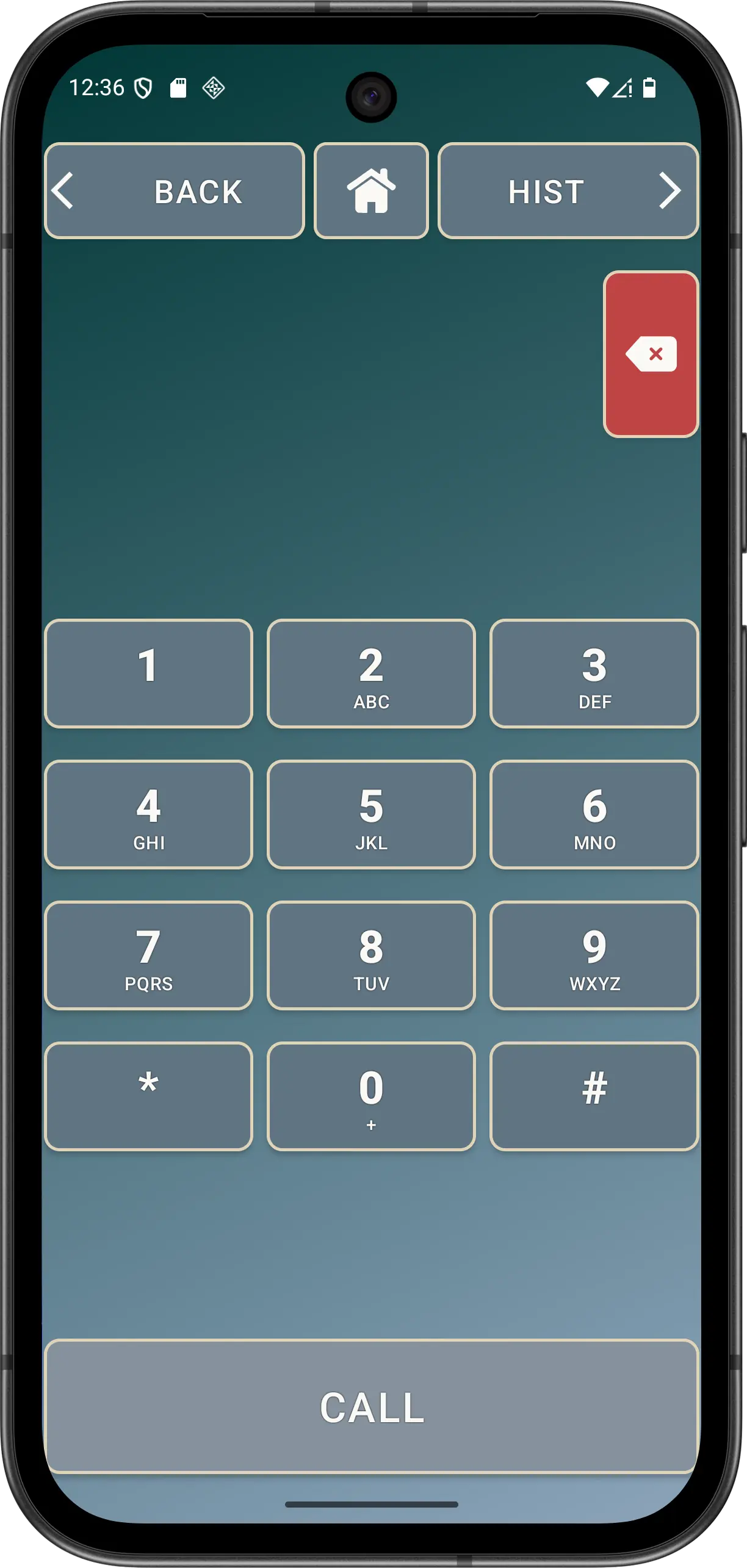
- Enter digits, star or hash. The large keys also show standard telephone letters.
- To paste, press and hold the number display. Elder Dialler accepts dialable characters and no more than one leading +.
- Use Backspace for one character or hold it for repeated deletion.
- Check the CALL button. It uses neutral styling when the field is empty and the theme's primary styling when input is present.
- Press CALL only after checking the number. Malformed input produces an invalid-number explanation, and Ask before dialling may add a confirmation.
External telephone links are safe by design: a supported tel: link can prefill the Dial Pad but never starts a call automatically.
Accessibility
Digit and letter labels, Backspace, CALL, HOME and history navigation use clear semantic actions. Theme-responsive foreground colours and large touch targets remain important when checking Normal, Dark and Warm themes.