Prepare and use phone contacts
Review the names and callable numbers Elder Dialler reads from Android Contacts before assigning app-specific roles.
Browse and search
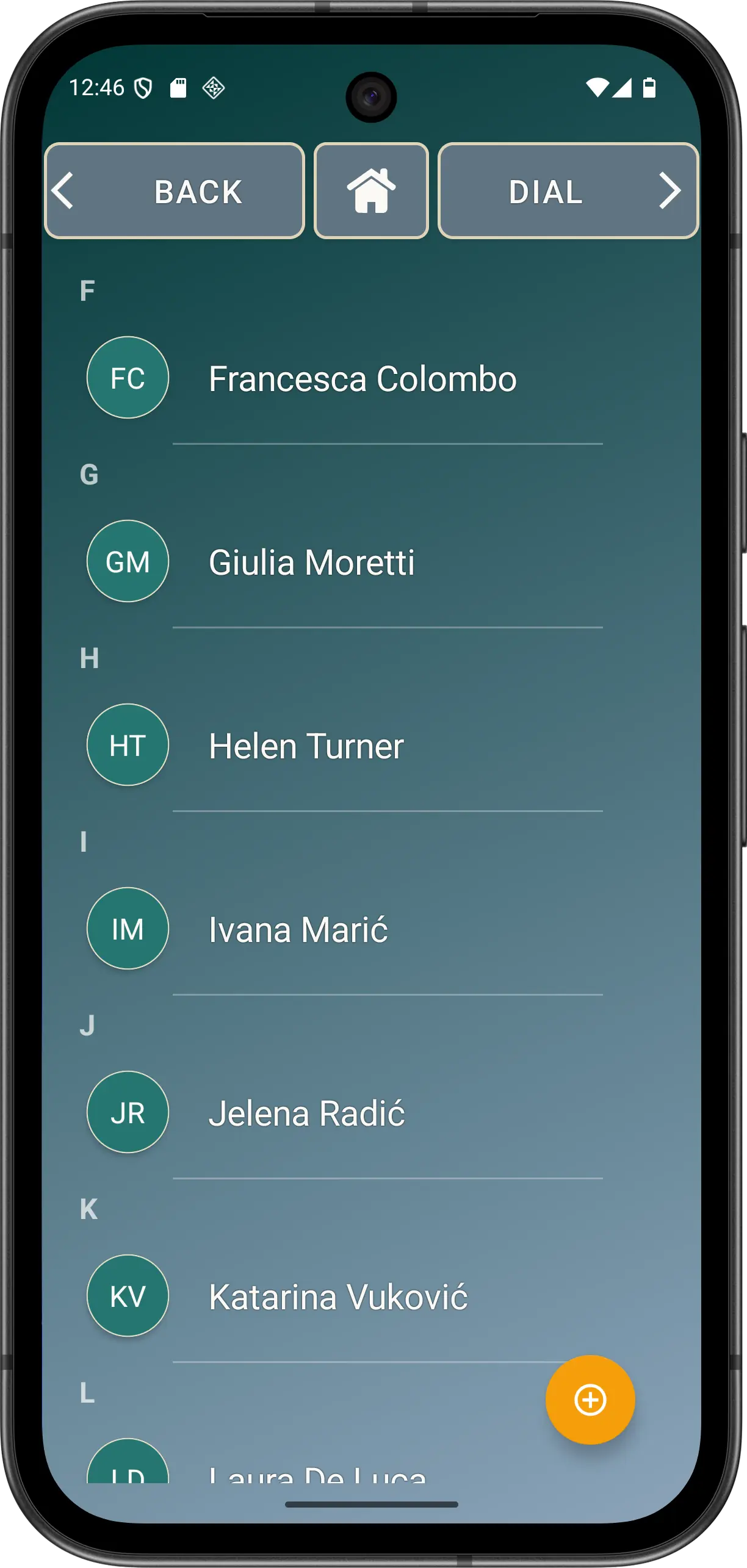
- Open CONTACTS in Normal Mode. Grant Contacts permission if Android asks.
- Review each callable row. A person with several phone numbers can appear as separate rows, so check the intended number before calling or assigning it.
- Reveal search by pulling down near the top of the list. Search matches normalised names and numbers, and sorting follows the effective app language.
- Open contact details when more context is needed. Confirm the clean display name and formatted number before an assignment or call.
Add, edit and assign
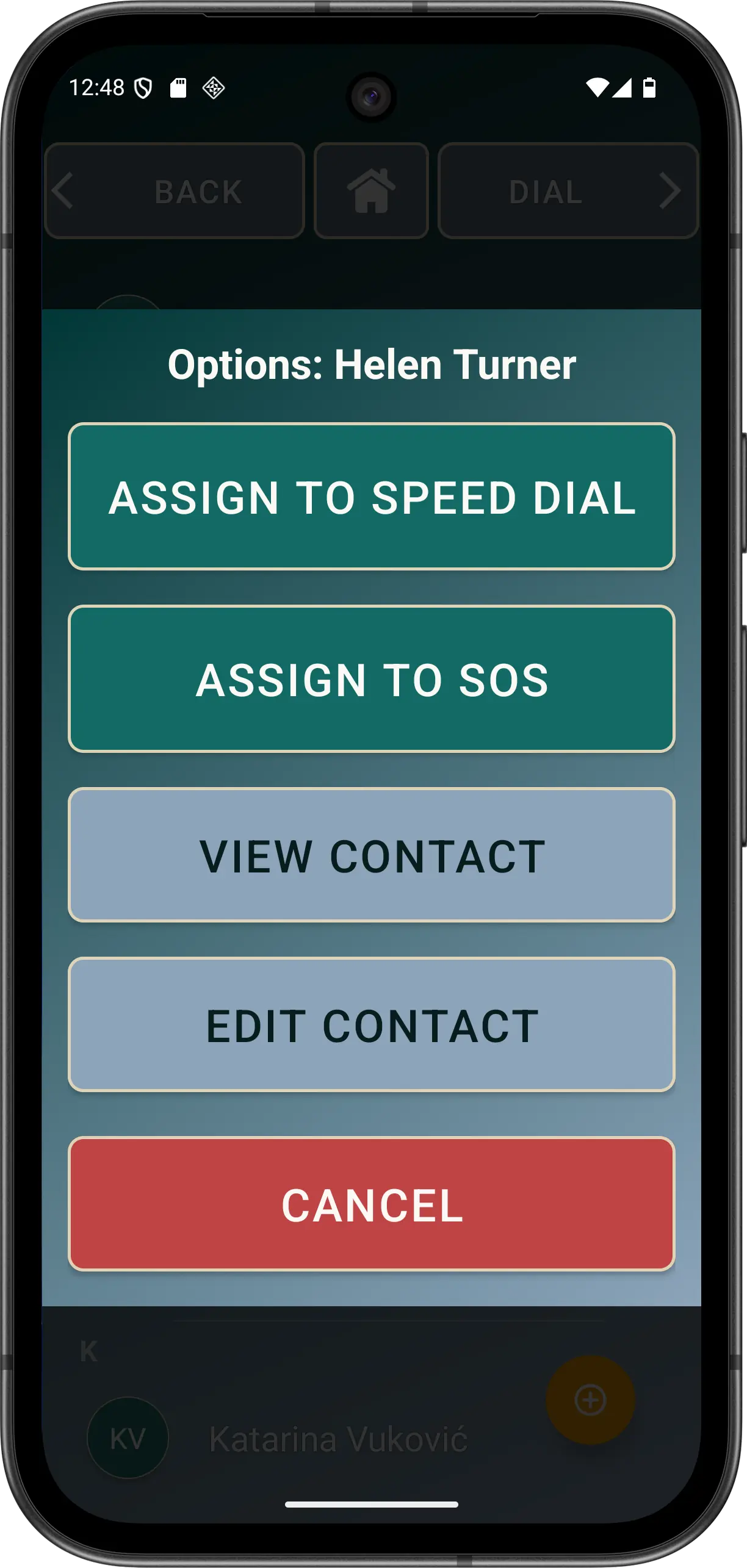
The yellow + opens Android's contact-creation flow. A long press on a contact row can offer the actions permitted for that number: call, compose SMS, view details, edit in Android Contacts, assign or remove a speed-dial position, assign or remove an ordered SOS role, and block or unblock where the protection rules allow it.
Keep ownership clear: Android Contacts stores names, numbers and photos. Elder Dialler stores speed-dial, SOS and blocking assignments. Elder Mode suppresses editing paths that conflict with the simpler experience.
Accessibility checks
Use the chosen app font and theme while reviewing long names and multiple-number rows. TalkBack users should hear a meaningful contact identity and action rather than decorative images or duplicate labels.