Pin Elder Dialler for a simplified phone user experience
Pin the app to make it easy for anyone to use the phone.
Screen pinning acts to minimise the likelihood of people getting lost in complex phone functionality. It seeks to provide a minimum set of user functionality to enable people keep in touch whilst not having to deal with a multitude of phone functions.
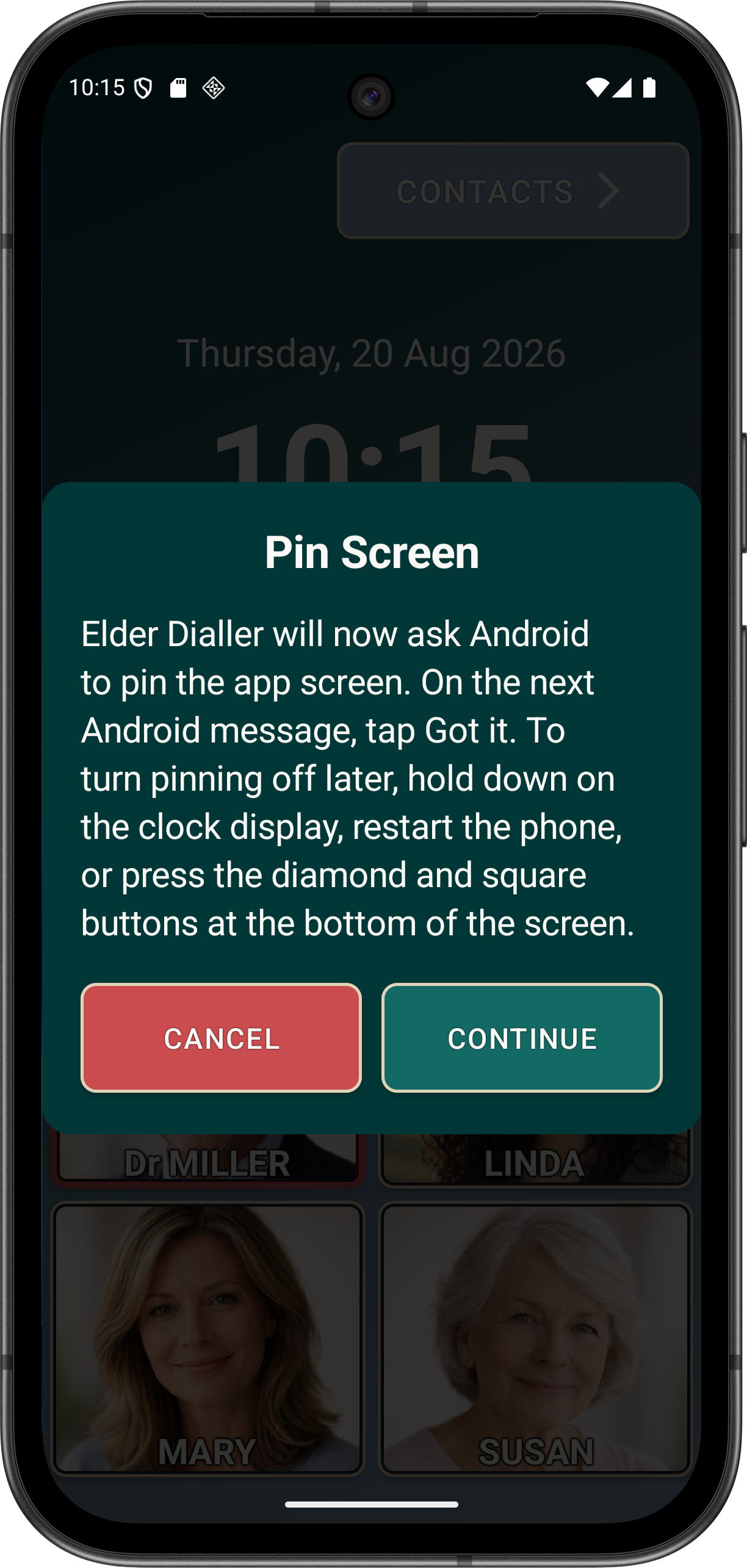
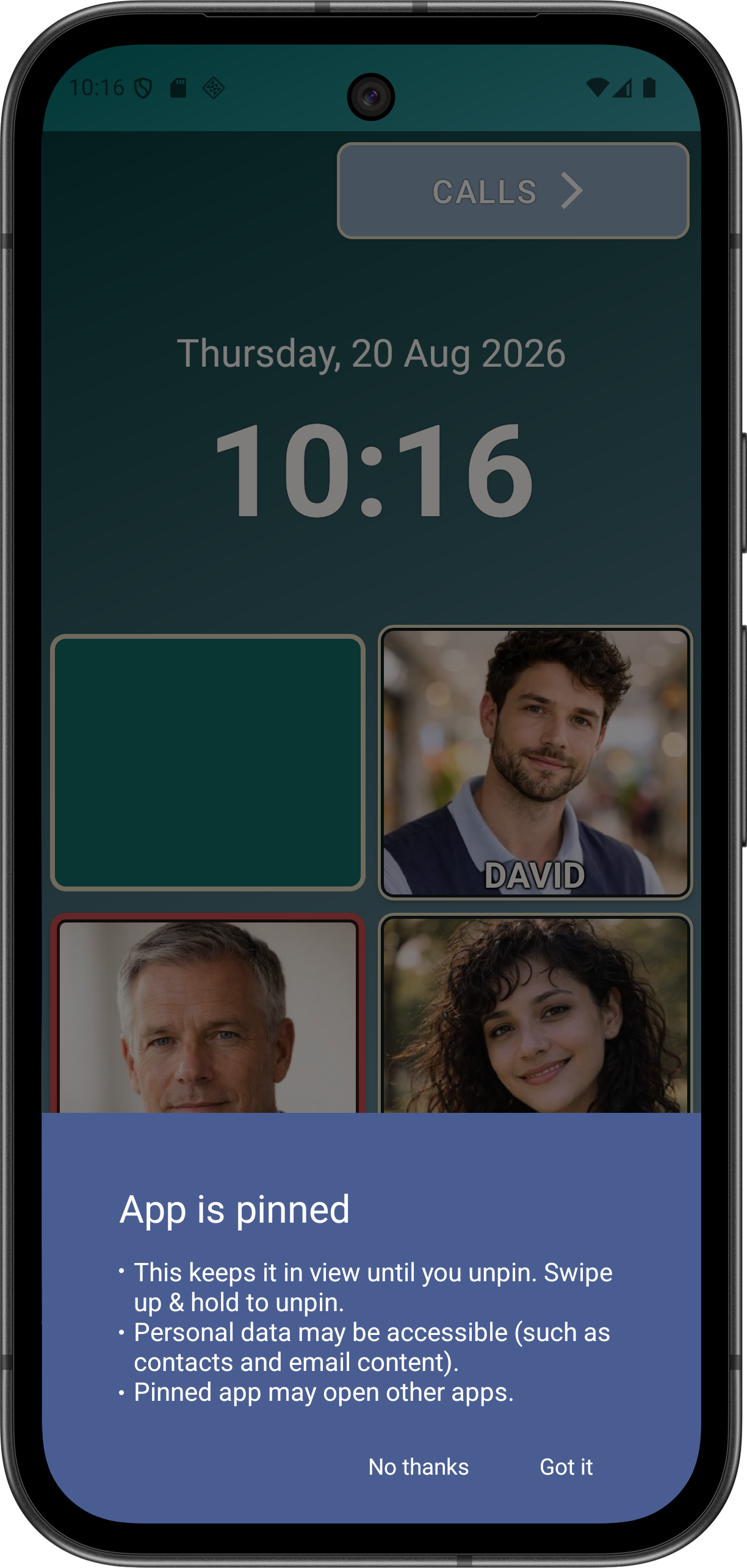
Apply pinning to simplify your phone experience.
- Complete contacts, speed dial and safety choices first.
- Choose Pin Screen during Guided Setup or through Preferences. Elder Dialler shows its own Pin Screen dialog before Android asks for confirmation.
- Press CONTINUE in Elder Dialler, then press Got it on the Android screen-pinning dialog. Pin Screen does not work unless Android's confirmation is accepted.
- If No thanks is pressed, treat Pin Screen as not enabled. Reopen Preferences or Guided Setup and repeat the step when the phone user is ready.
- Use the pinned main screen. The top button should read CALLS, swipe navigation should be unavailable and speed-dial reassignment should be blocked.
- Exiting pinned mode: this can be done by pressing your finger on the clock display and holding it there for at least 5 seconds. This will exit pinned mode and return to normal operation. Other ways to exit pinned mode include pressing the Android square and arrow buttons at the same time, or simply restarting the phone.
Pin Screen is a free feature in Elder Dialler app commit 706ee379.
Disclaimer: All names, contact details, and images displayed on this website and shown within the Elder Dialler application are entirely fictitious and are used for demonstration and illustrative purposes only. Any resemblance to real persons, living or deceased, is purely coincidental. No content is intended to represent, simulate, or replicate any actual individual.